
Bring your Zendesk tickets, contacts, tags, attachments, and help center articles into Productlane in one import. This runs in the background, so you can keep working while it finishes.
Available on the Pro plan or higher.
Get your Zendesk credentials
You will need three things from Zendesk:
API URL in the form
https://yourcompany.zendesk.com/api/v2/.API token, created in Zendesk under Admin Center → Apps and integrations → APIs → Zendesk API.
The email of the Zendesk account the token belongs to.
Run the import
In Productlane, go to Settings → Import / Export and click Zendesk in the Conversations row.
Enter your API URL, Zendesk token, and Zendesk email.
Click Validate credentials. Productlane confirms it can reach your Zendesk.
Set how far back to import with Days back (use
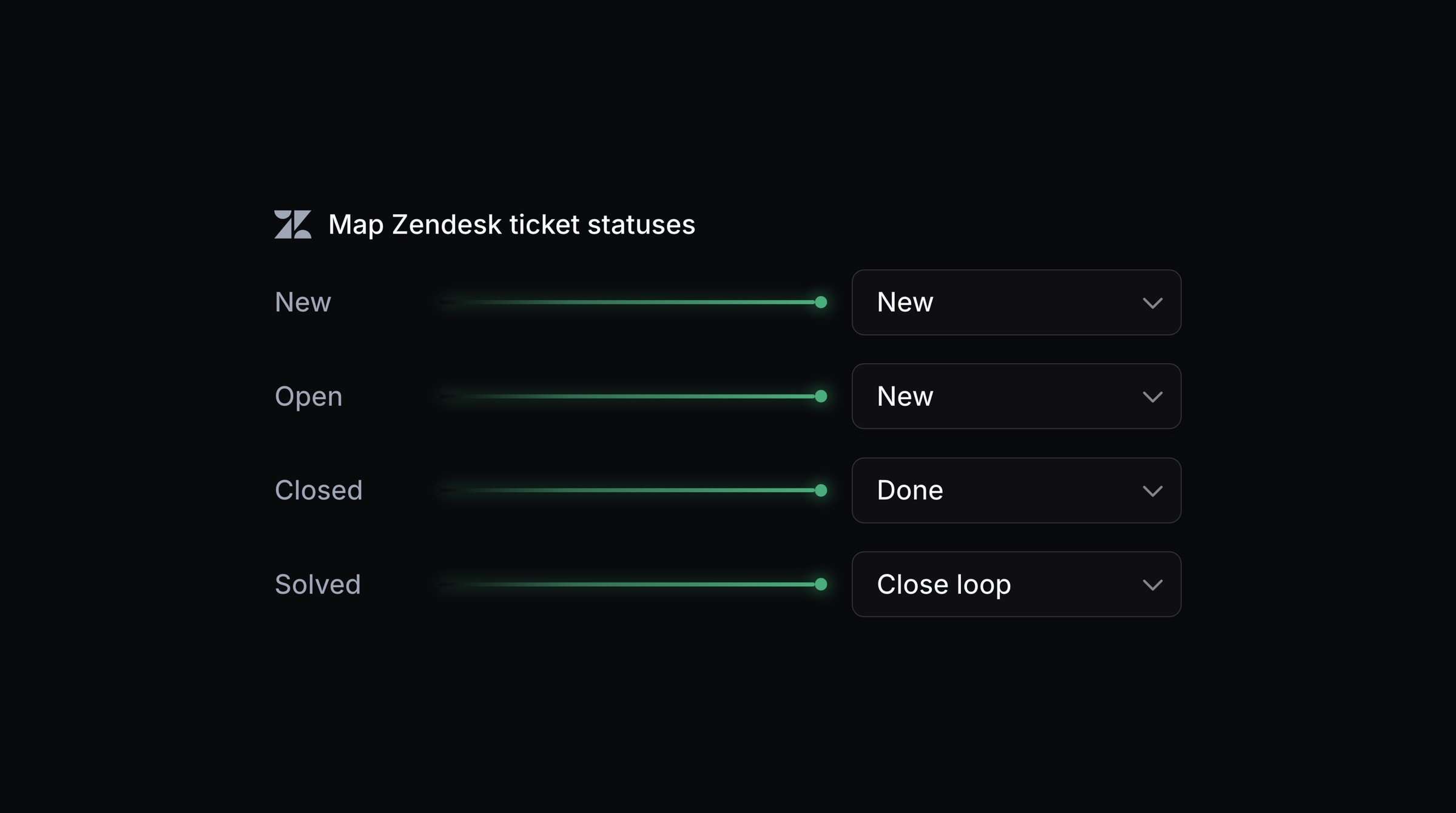
0to import everything), and toggle Import attachments if you want files brought across.Map each Zendesk status (New, Open, Closed, Solved) to a Productlane status (new, done, or close-loop).
Click Import data. The import is queued and runs in the background; you will get a confirmation when it completes.
What gets imported
Tickets become Productlane threads, with their contacts, tags, and attachments if you chose them. Your status mapping decides which inbox tab each ticket goes to.
Your Zendesk help center comes across in the same import. Categories and sections become groups in your docs, articles keep their draft state, and images are copied into Productlane.
To receive new customer email in Productlane after the import, set up email forwarding from your support address.
Your Zendesk token and the imported source data are used only for the import and are not stored afterward.