
Auto AI-Drafts
Open a thread to a reply that the AI has already drafted.
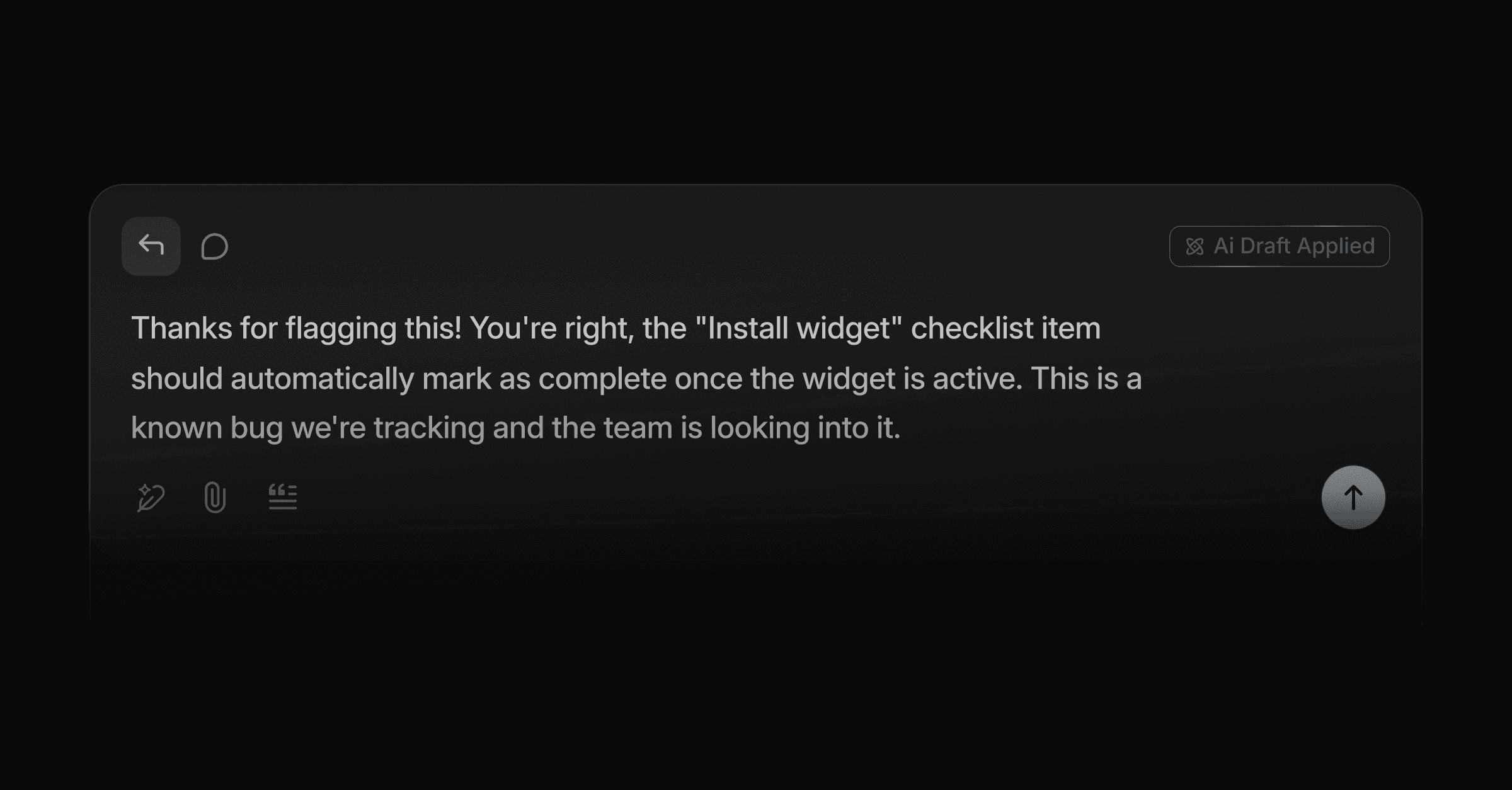
AI Drafts writes a suggested reply in the background, so your team opens a thread to a draft that is already there. A draft is always a suggestion, and it is never sent on its own.
AI Drafts needs the Starter plan or above.
New workspaces start with AI Drafts already on, so the first incoming thread already gets a suggested reply. Turn it off in Settings if you'd rather your team start from a blank reply box.
Where to find it
Settings > AI > AI Drafts.
Set it up
Turn on Generate drafts with AI.
In the Custom prompt field, describe how drafts should read: tone, length, and any structure you want.
Click Learn writing style from replies and Productlane proposes a prompt based on how your team already writes. Adjust it from there.
Both the switch and the prompt save as you go.
When a draft appears
A draft is prepared while a customer is actually waiting. Productlane looks at the newest message on the thread, whether it came by email, Slack, or live chat. If the customer sent it, a draft is generated. If your teammate already replied last, nothing new is drafted until the customer writes again.
Close loop follow-ups are the exception, since you send those on your own initiative. See Close-the-loop drafts.
What grounds a draft
The thread's own context, plus your read-only sources: docs, changelog, roadmap, and whitelisted SQL.
When a GitHub repository is connected, Productlane searches the code for what the customer is asking about before it writes the draft, since the code reflects the product's current behavior more reliably than the docs do.
Attachments count too. A file or pasted screenshot on the customer's email feeds the draft alongside the text, up to five attachments per message.
Adjusting a draft
Click the pen icon on the AI drafted badge to open Adjust draft. Describe the change you want, such as "make it shorter" or "add a link to the pricing page", then press Enter or click Adjust draft. Productlane regenerates the draft with your instruction applied, replacing the draft in the reply box.
Good to know
A draft is signed with the first name of whoever opens the thread, so it stays right across teammates.
Your custom prompt overrides the default drafting rules where they conflict, with two exceptions: a draft is always the real reply text rather than a description of it, and it never claims something shipped when it has not.
Drafting help center articles from shipped Linear issues and GitHub commits is a separate feature. See Self-updating Help Center.