
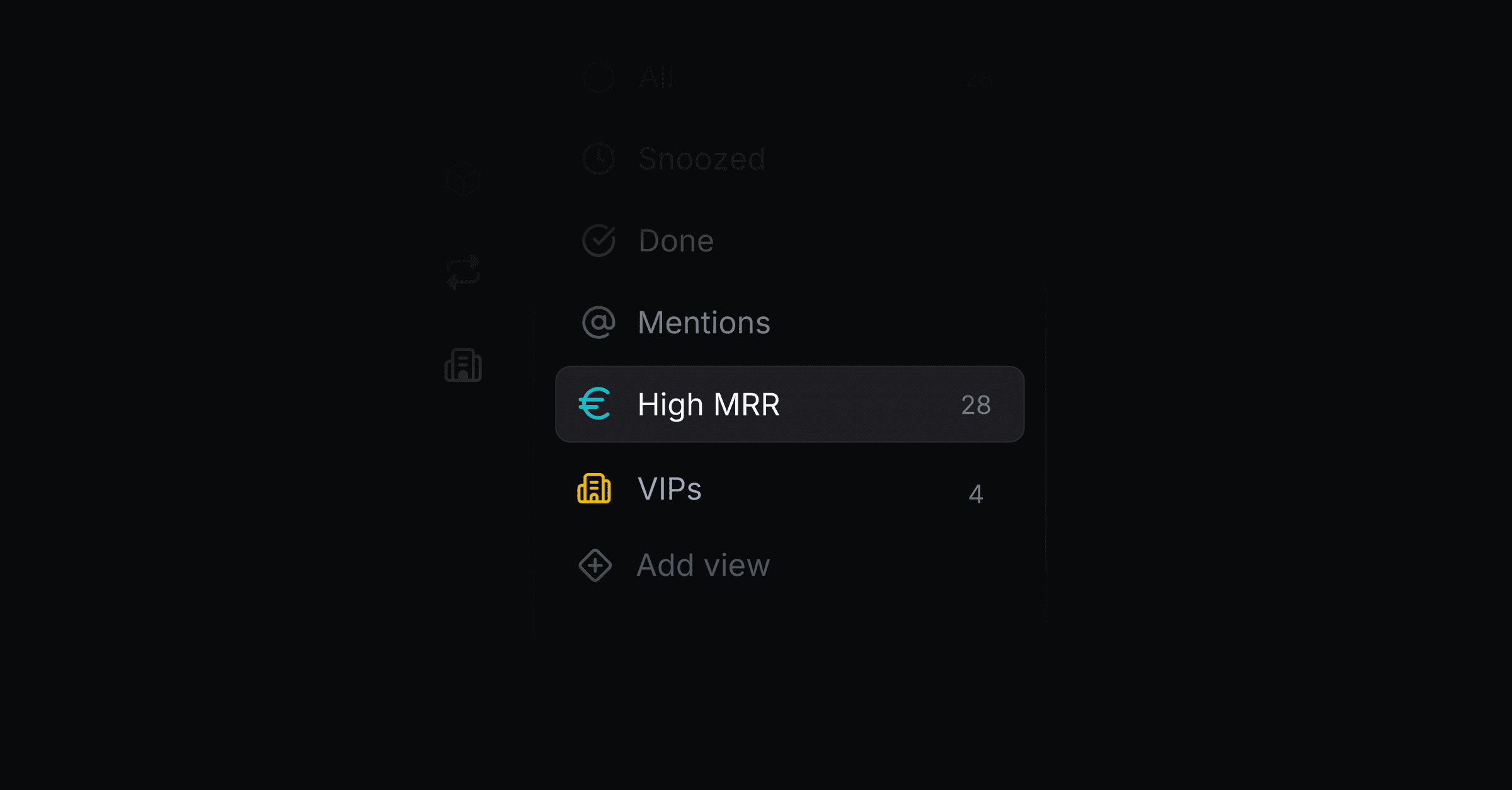
Custom views let you save any combination of filters as a named, persistent shortcut in your inbox sidebar, so the queues you check every day are always one click away.
When to use a custom view
Use a custom view whenever you find yourself applying the same filters more than once. Common examples:
My open threads: assignee is you, status is open
Enterprise escalations: company tier is enterprise, priority is Important
Untriaged from the widget: origin is widget, reply state is Needs response
Bugs from a specific customer: company is Acme, tag is bug
Awaiting your reply: reply state is Needs response, assignee is you
Create a view
Open the inbox.
Apply the filters you want to save using the filter bar, by company, person, issue, the workflow status of the linked Linear issue, tag, project, assignee, origin, priority, creator, status, reply state (Needs response or Replied), company tier, company status, company owner, company revenue, or company size.
In the sidebar, hover the Views section and click Add view.
Type a name (max 20 characters) and pick an icon.
Press Enter or click Save.
The view appears in your sidebar with a live thread count next to it. If the view is filtered down to exactly one assignee, that person's avatar is shown in the sidebar instead of the view's icon.
Is / is not
Once a filter chip has at least one value selected, click the operator in the middle of the chip (it reads "is" or "is any of" by default) to switch it to "is not" or "is none of". This flips the filter to exclude the selected values instead of matching them, for example tag "is not" bug to see every thread except bugs.
This works the same way on threads, contacts, and companies filters, and on the roadmap filters. The operator is saved as part of a custom view, so a view can be built entirely around exclusions, like company tier "is none of" free, trial. Removing every value from a filter also clears its operator, so the next value you pick starts fresh as "is".
Edit a view
Hover the view's icon in the sidebar and click the ⋯ menu, then Edit. You can:
Rename the view
Change the icon (click the icon to open the picker)
Update the saved filters using the filter button in the editor
Click Save to commit, or Cancel to discard. Your inbox's current filter state is restored automatically when you exit edit mode.
Delete a view
Hover the view's icon, open the ⋯ menu, and click Delete. The view is removed immediately for everyone in the workspace.
Good to know
Views are workspace-wide. Everyone in your workspace sees the same views, so treat them as shared queues.
Counts update live. The badge next to each view reflects the current number of matching threads in real time.
Counts are capped at 20. If a view has more than 20 matching threads, the badge shows "20+" instead of the exact count.
An empty view shows no badge. With zero matching threads, the count badge disappears.
Views follow renames. Editing a tag, project, or company a view filters on keeps the view working, and it shows the current matches.
Common questions
Can I prioritize threads by customer tier? Yes. Add a company tier filter, for example tier is enterprise, and save it as a view. Combine it with status or priority to build a triage queue.
Can I exclude values instead of matching them? Yes. Click the operator on a filter chip and switch it to "is not" or "is none of". See "Is / is not" above.
Does Productlane have custom fields? No. Productlane keeps one shared set of fields, the way Linear does. To show your own data on a thread, use Connectors. If a workflow needs a new field, tell us what you are trying to do.