
Publish your roadmap
Publish your Linear requests as a roadmap customers read.
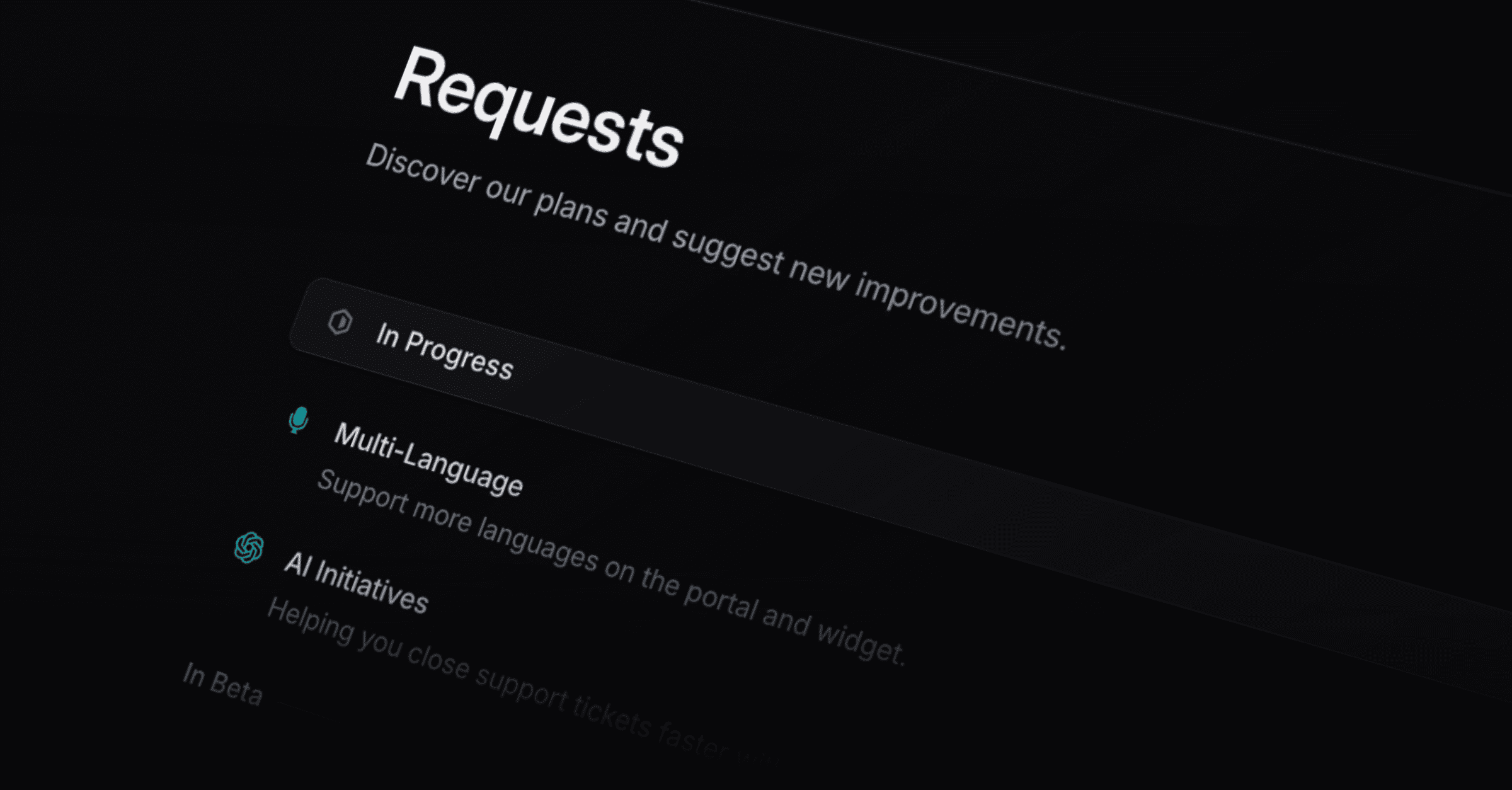
Publish your Linear requests as a roadmap your customers can read, and control what they see there.
Where to find it
Settings > Feature requests. Every control saves the moment you change it.
Publish and configure
Turn on Make Feature requests public.
Copy the roadmap URL from the field, or open the preview to see it as a customer does.
Set Sorting to Linear to follow your manual order, or to Importance to order by request count.
Turn on Due dates to show Linear due dates, and Initiatives to show Linear Initiatives.
Turn on Team requests so a customer sees every request from their own company.
Turn on Linear issue description to show an issue's Linear description when it has no public description.
Choose how issues under a listed project appear. Group under project (the default) shows such an issue only inside its project. Show separately gives every issue its own row, and its project pill links to the project.
Sorting, due dates, initiatives, team requests, and the description toggle appear once the roadmap is public. If they are missing, publish first.
What customers read
Requests come from Linear, and each issue or project can carry a customer-facing title and description that you write in its detail panel in Productlane.
Titles. The roadmap shows your public title. With none set, it falls back to the Linear title. The support portal and the widget's request list follow the same order.
Issue descriptions. Customers see your public description. With none set, they see nothing, unless Linear issue description is on, in which case the Linear description shows instead. Your public description always wins when it exists.
Project descriptions. Customers see your public project description when there is one, and the Linear project description otherwise. The issue toggle does not affect projects.
With translations on, a matching translation wins over both.
Formatting. Public descriptions render Markdown: bold and italic, links, headings, bullet and numbered lists, checklists, tables, and images. Click the rendered text to edit it again.
Good to know
Team requests is the same setting shown on the Support Portal page, so changing it in one place changes both.
Portal settings covers your custom domain, SSO, theme, and making the portal private.
Hiding an issue or project on the Feature requests screen only takes it off the public roadmap. A customer whose company already has that issue or project attached as a request still sees it in their own Support Portal and widget requests list. See Customer Support Portal for how the two visibility settings relate.
The project drawer lists a project's issues in both modes. A search on the roadmap shows every matching issue in both modes.
Hiding an issue also removes it from its project drawer. To keep an issue visible inside its project, leave it visible and use Group under project.