
Custom domain
Point a domain you own at your public Productlane portal.
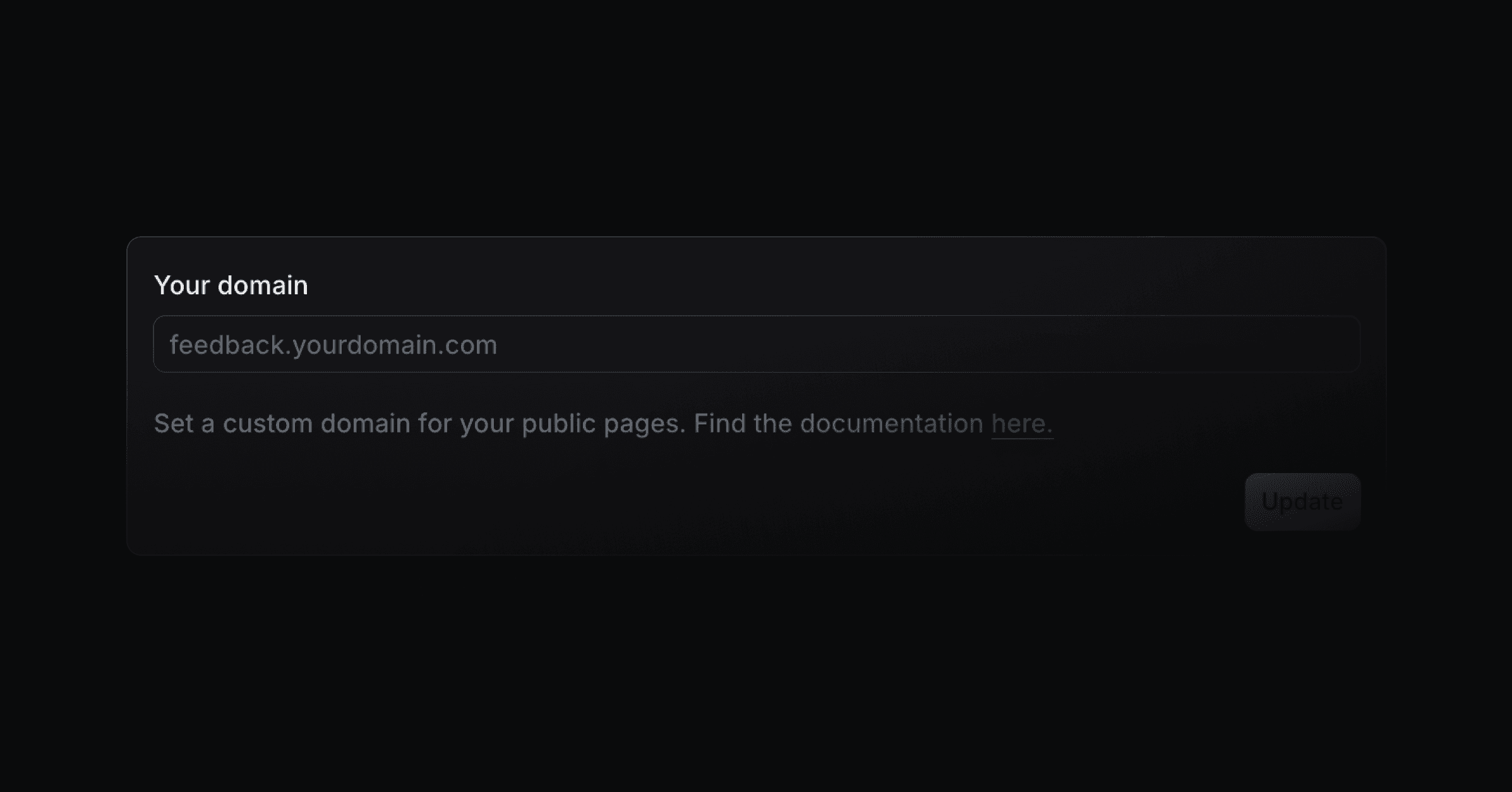
Serve your public Productlane portal from a domain you own, such as support.acme.com.
If you run Multiple Portals, a named portal can carry its own domain instead of the workspace domain below. Set that from that portal's own settings page.
Connect your domain
Enter the domain
Open Settings > Portals > Custom domain and enter the domain you want to use. The subdomain can be anything, for example
supportorroadmap.Add the CNAME record
At your DNS provider, add a CNAME record for that subdomain. The settings page shows the exact target. It follows the pattern
<your-workspace>.customers.productlane.com.Your DNS settings usually live with the company you bought the domain from.
Add the TXT record, if shown
Some domains also get a TXT record that proves you own the domain. Add it the same way. Once the domain is active, the page says only the CNAME is required, and you can remove the TXT record.
To switch to a different subdomain later, update both the domain in Productlane and the CNAME record at your DNS provider.
Cloudflare
Set the record's Proxy status to DNS only. A proxied record causes SSL errors such as "525: SSL handshake failed".
To change it, go to dash.cloudflare.com > Websites > your domain > DNS, find the record that points to productlane.com, click Edit, and turn the proxy off:

DNS changes can take a while to spread. If nothing has changed after 24 hours, email [email protected] and we will sort it out with you.
Squarespace and similar providers
Some registrars, Squarespace among them, add your domain to the end of every record name. Enter only the subdomain label, for example support, in the name field of both the CNAME and TXT records.
Was this helpful?