
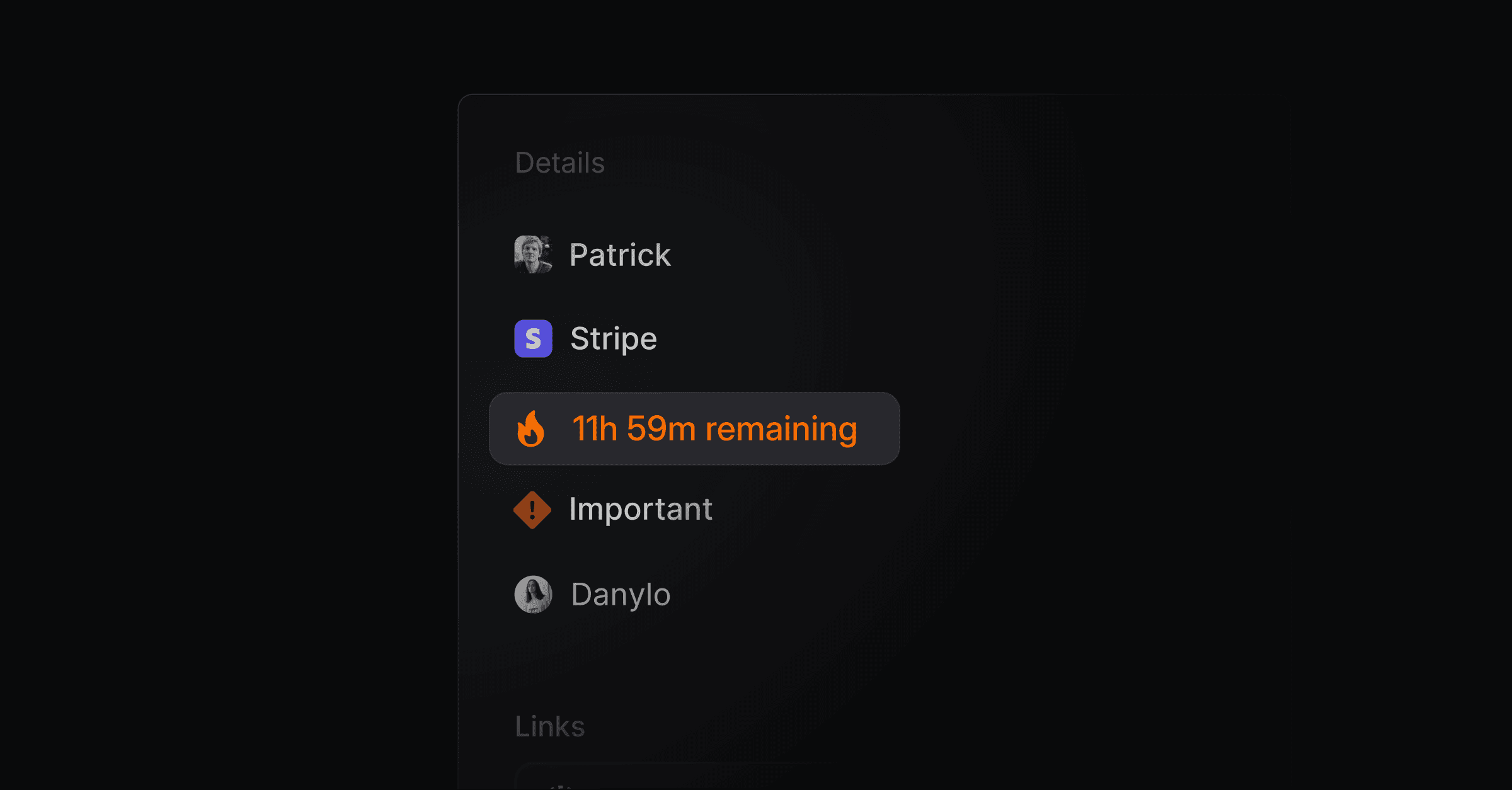
SLAs set response targets for your threads and show which ones are about to miss them. They need the Scale plan or above, and live under Settings > Office hours & SLAs.
How it works
With SLAs on, every new thread is matched against your policies top to bottom, and the first match applies. Each policy sets up to three targets:
First response: how soon your team should send the first reply to a new thread.
Next response: how soon your team should reply after each later customer message. It resets with every new customer message.
Time to close: how soon the thread should be resolved.
The clock pauses after a reply
The response clock runs only while your team owes a reply. When a teammate replies, the SLA badge disappears and no breach is recorded for that window. The clock starts again when the customer writes back.
A thread your team has answered shows no breach badge, even when the original deadline has passed.
The SLA breached inbox view lists only threads still waiting on your team.
When the customer follows up after an on-time reply, a new response window starts. The deadline your team already met stays met.
SLA statuses
Every thread with an active SLA shows a status badge:
On track: more than 60 minutes left.
At risk (yellow): 60 minutes or less left.
Breached (red): the deadline passed and your team has not replied.
Hover the badge for the exact deadline.
The SLA badge and the clock next to a thread in the inbox list show the SLA deadline. Snoozing uses a separate clock in the thread header. A thread with an SLA clock is not snoozed, and it will not show up under Snoozed. See Snoozing.
Policies and conditions
A policy applies to all threads, or to threads that match its conditions. Conditions can match on:
Thread fields: priority and origin, such as Widget, Email, Slack, Portal, Live Chat, or API
Company fields: name, size, revenue, tier, and status
Contact fields: email
Conditions support operators such as equals, not equals, contains, starts with, greater than, and less than. Combine several with ALL, where every condition must match, or ANY, where one is enough.
Default policies
Turning on SLAs for the first time creates four policies:
Policy | First response | Next response | Time to close |
|---|---|---|---|
High Priority | 1 hour | 4 hours | 1 day |
Medium Priority | 4 hours | 8 hours | 2 days |
Low Priority | 8 hours | 1 day | 1 week |
Default (all threads) | None | None | None |
Edit, reorder, add, or remove them at any time.
Turn it on
Go to Settings > Office hours & SLAs.
Turn on Enable SLAs.
Turn on Use office hours to count only time inside your office hours. Nights, weekends, and holidays then don't count, and a deadline that would fall outside your hours moves to the start of the next window.
Add policies with Add Policy, or edit the defaults.
See Office hours to set your hours and timezone.
Manual overrides
You can set or remove the SLA deadline on any single thread. Productlane keeps your manual deadline and does not recalculate it.