Productlane changelog
Changelog
The latest Productlane releases and improvements.
By continuing, you agree to our T&C and Privacy Policy.
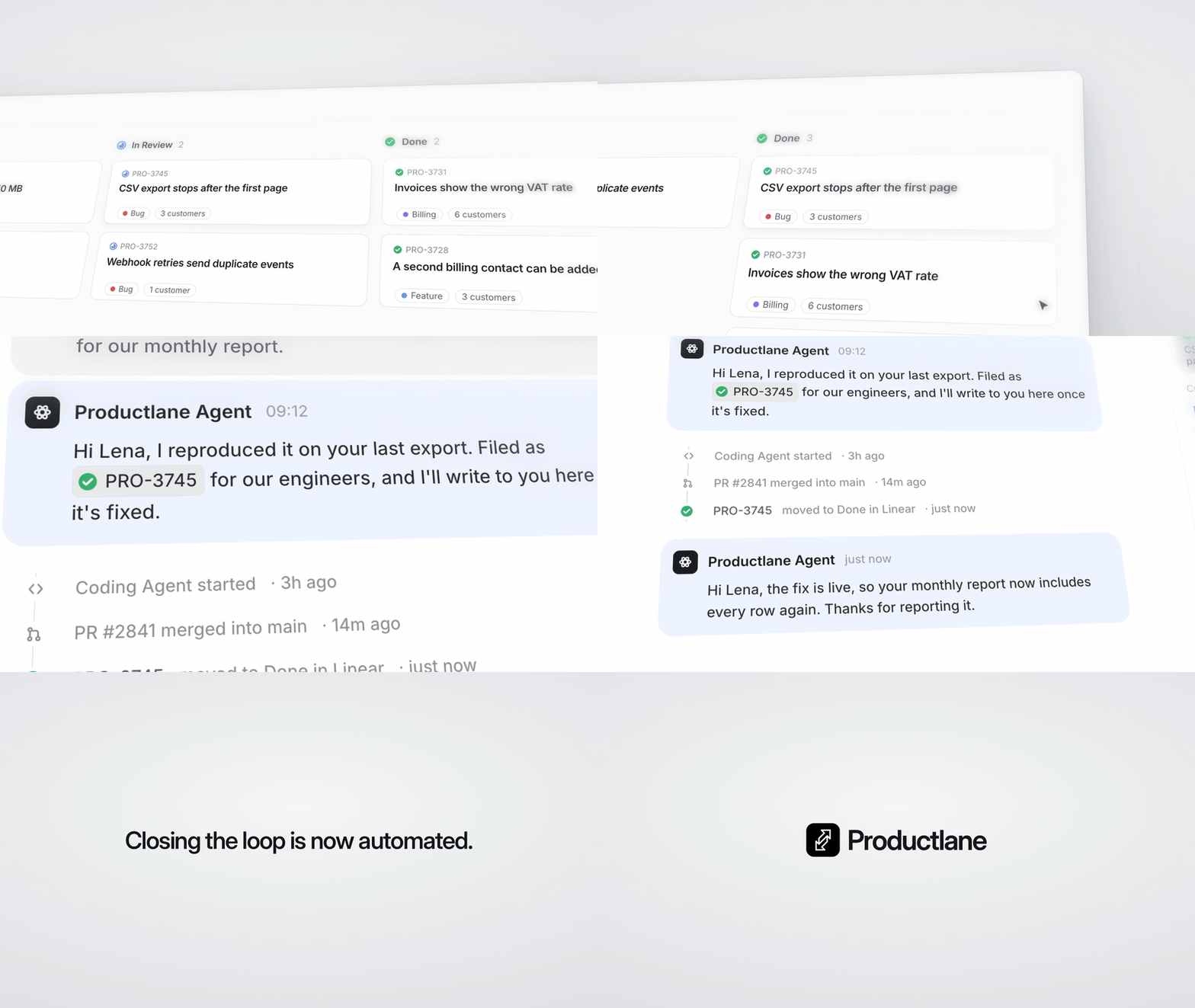
Automatic loop closing
This is something we’re really excited about, and it closes a gap we've been thinking about for a long time at Productlane. Until today, we kept closing the loop manually so you could create that personal delight moment for your customer.
But now that models have gotten better, and people enjoy talking much more with agents, we finally automated this piece of Productlane.
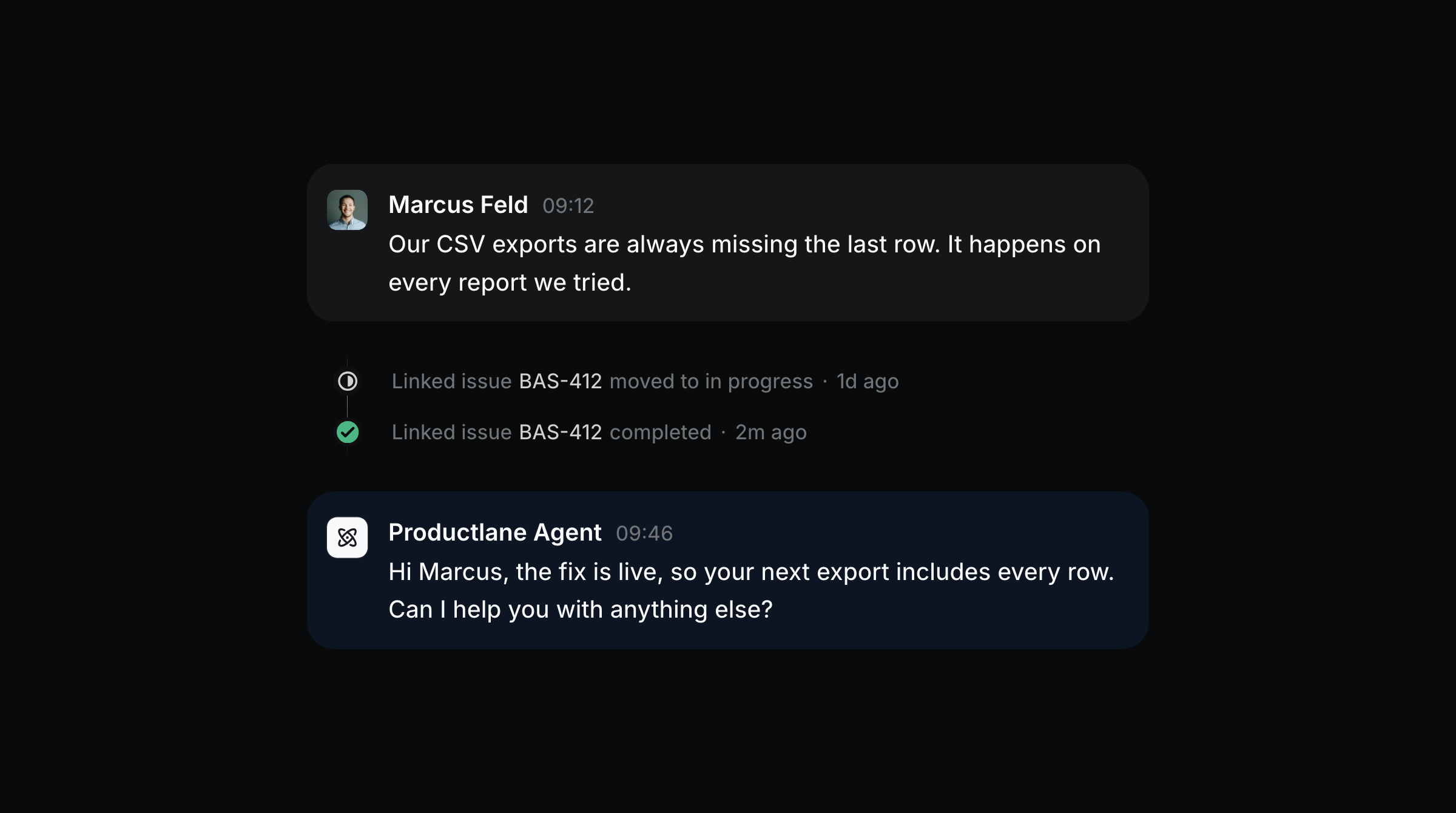
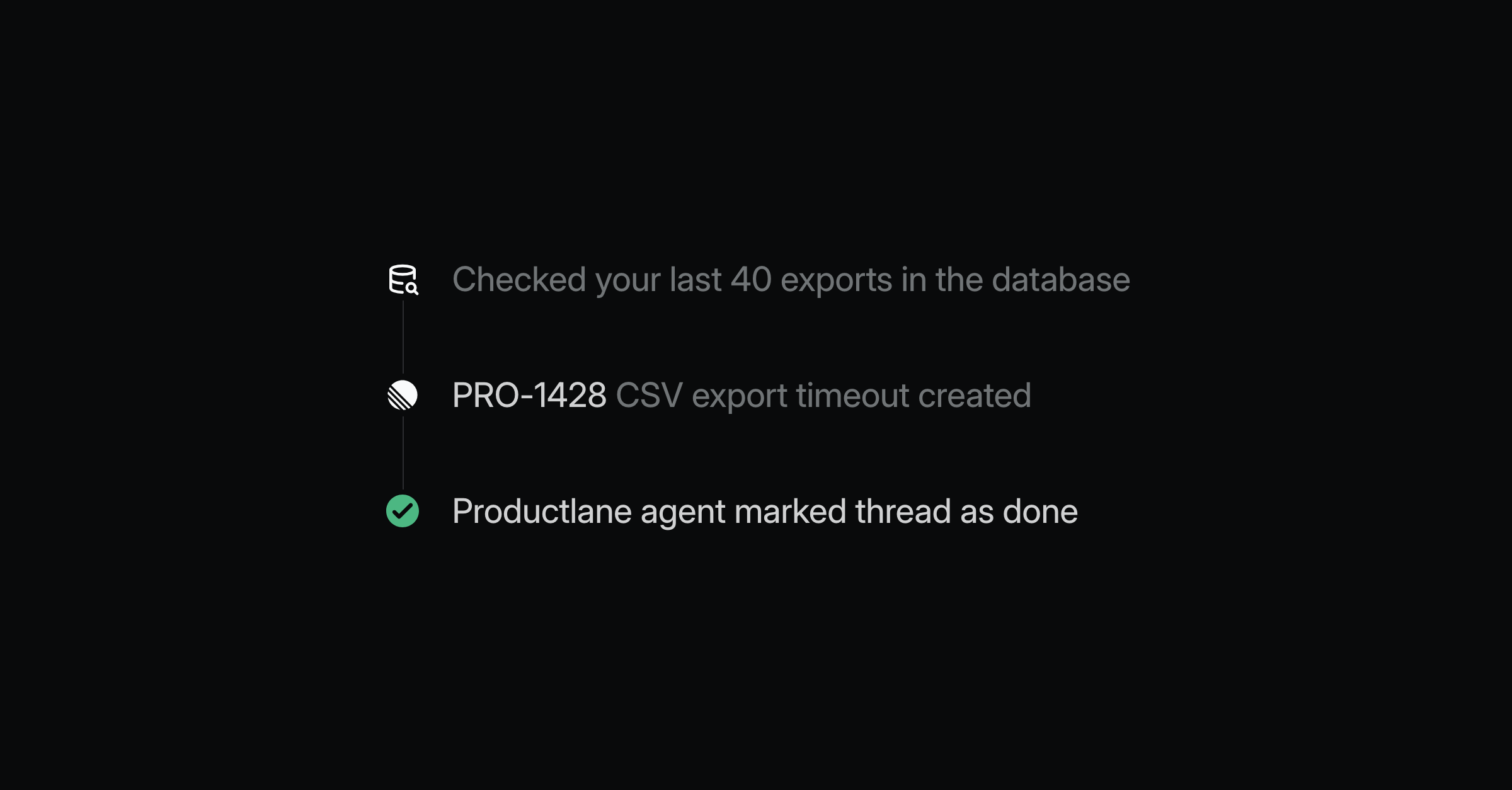
We're excited to introduce automatic loop closing. When a Linear issue or project linked to a thread is shipped, the Productlane Agent tells the customer who asked for it, in the channel they wrote from. It first checks whether you've already messaged the customer and verifies in GitHub if it’s already deployed.
A follow-up in every channel
Emails get a reply in the same thread. Slack and Teams threads get an answer in the conversation. Live chat gets a chat message plus an email copy, so the customer still sees it after closing the page. Turn it on in Settings → AI → Close loop and pick which Linear statuses count as shipped. It’s available on all plans, and you can turn it on here.
It reads the thread first
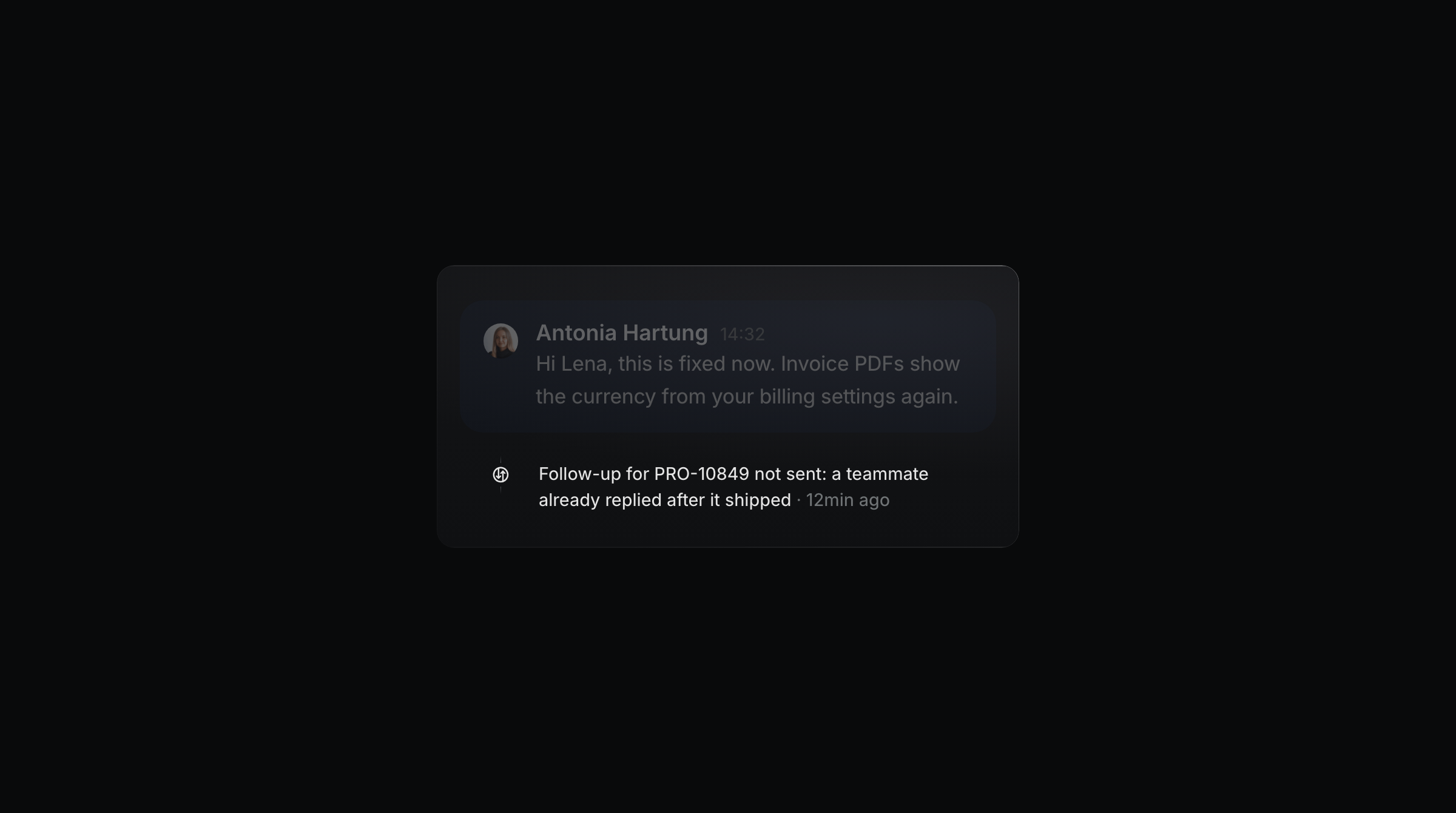
Before it writes, the agent reads the thread and follows up only when a message still makes sense. It holds back when a teammate already told the customer, when the customer wrote back in the meantime, or when the issue was canceled. Each time, the timeline says why, so your team can see the decision.
The message names what shipped
The agent uses your public title when you've written one. Otherwise, it writes a short phrase from the conversation the customer already saw, like "the fix for the missing CSV row", so that no internal Linear titles or descriptions could be leaked to customers. Once the follow-up goes out, the agent checks the thread for other open questions and marks it done automatically when there is nothing else open.
Attio and HubSpot integration
Productlane now syncs your support and AI Agent conversations to HubSpot and Attio. Sales and success teams can see what a customer asked your support team or AI Agent, on the record they already work from.
Attio
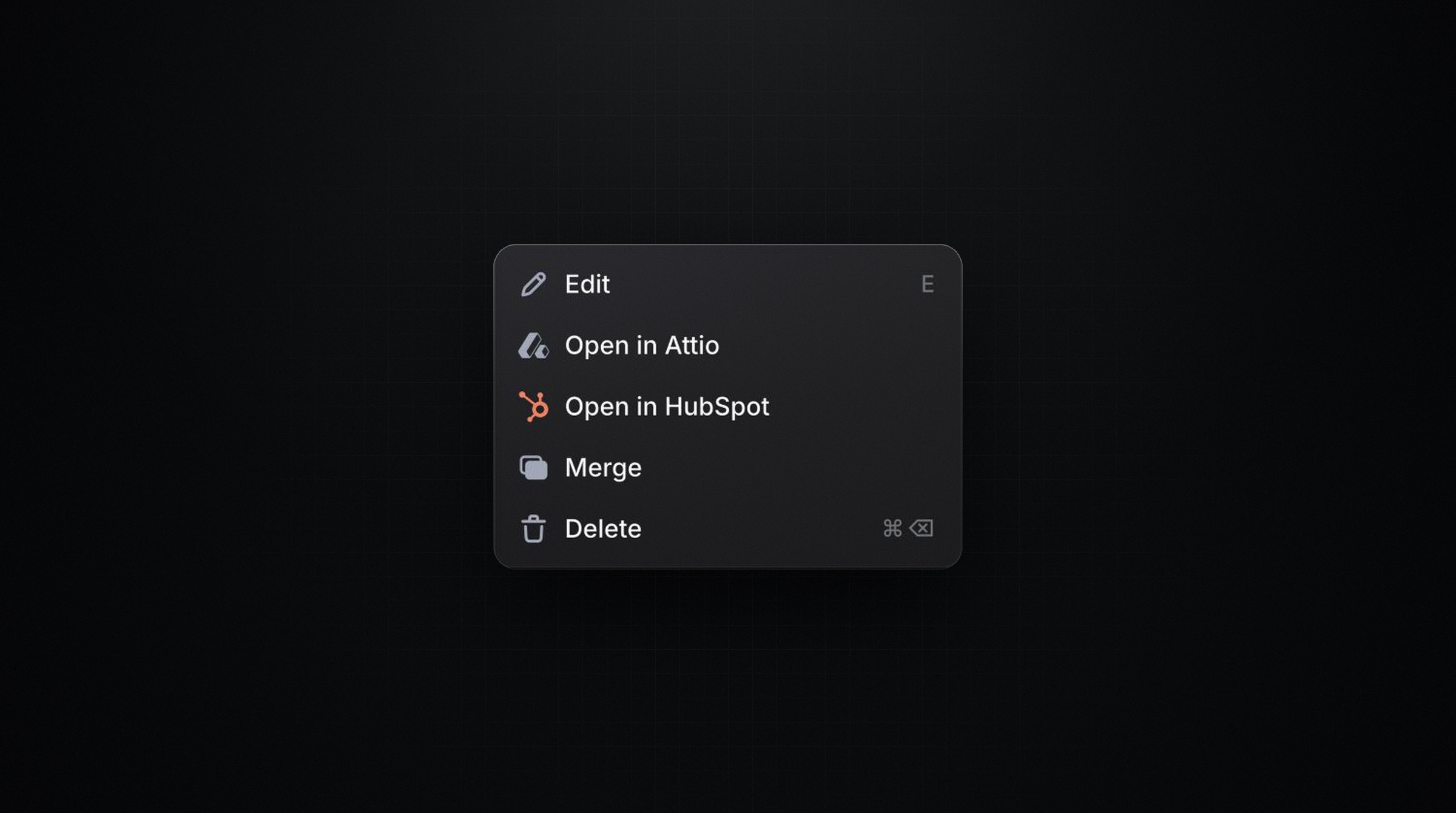
Every morning, Productlane adds a note in Attio for each thread with new messages from the last 24 hours. The note contains that day's messages with senders and timestamps, from email, Slack, the widget, and live chat, and links to the full thread in Productlane. It attaches to the person whose email matches the contact's email address or to the company whose domain matches theirs. Productlane also adds its contacts and companies to Attio once a day. Companies that match an Attio record get an Open in Attio button on their profile in Productlane.
HubSpot
The HubSpot integration now syncs every thread and contact to your CRM, including the full thread history. Contacts created partway through a conversation sync as well. Each record appears once in HubSpot, no matter how often the sync runs. Contacts sync one way, from Productlane to Attio and HubSpot.
Both integrations are available on Scale and Enterprise plans. Connect them in Settings → Integrations.
Notifications and a new sidebar
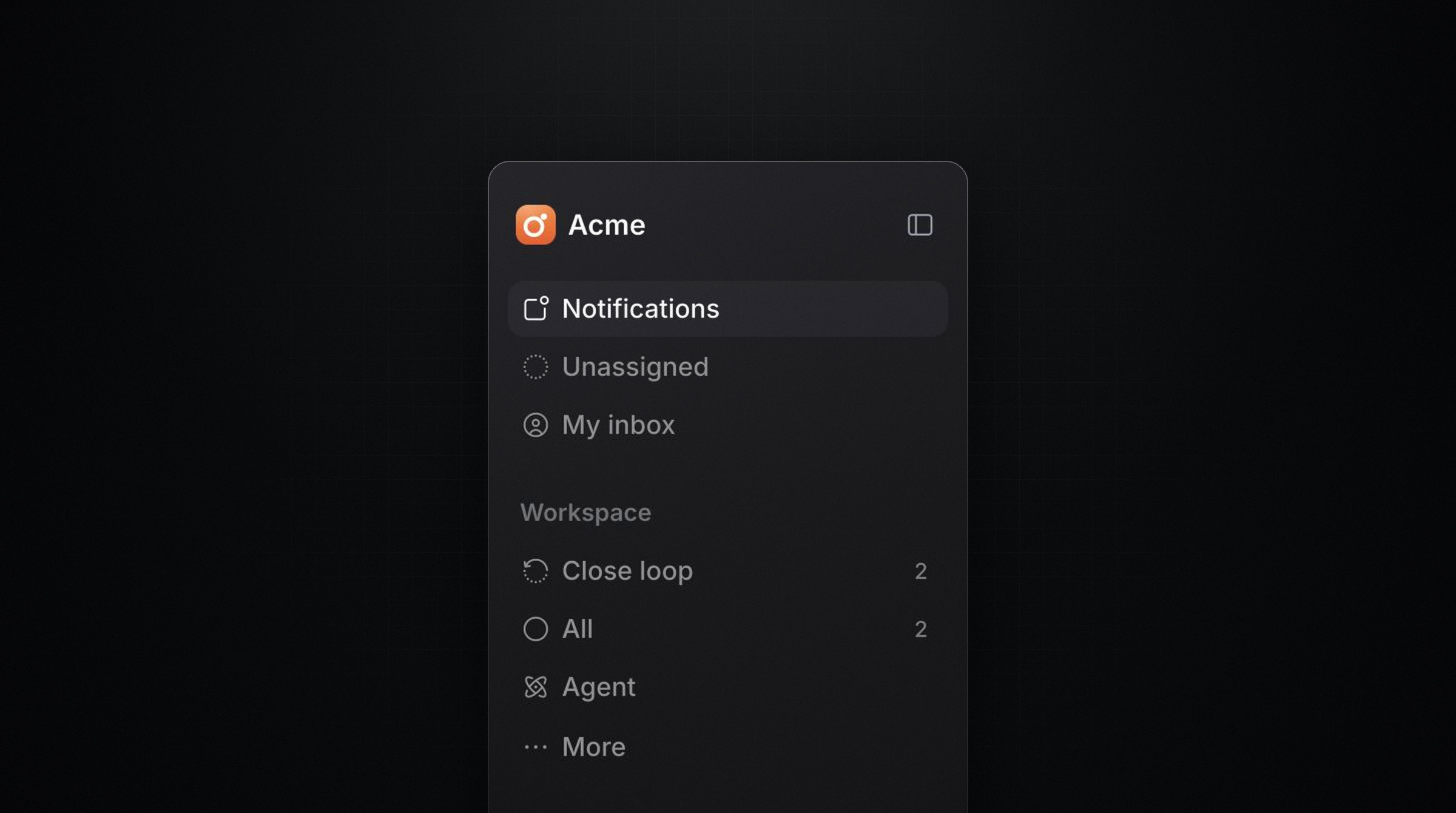
Know what’s happening in your workspace the moment it happens. New in-app notifications tell you when the agent has a draft ready, when it hands a conversation to your team, when a reply is about to go overdue, and plenty more. Each one has its own setting: always, only when it involves you, or never. Click a notification and the full thread opens right beside the list, ready for your reply.
The new sidebar starts with Notifications, but you can change that. Drag items into any order, or hide anything you rarely open. You can also show an item only when it requires your attention.
Spotlight mode

Your customers are getting used to asking AI wherever they are. Spotlight mode is a simple way to meet that expectation. You can imagine it as ChatGPT for your website. Use it on all your public pages, or in-app while users are trialing, to onboard them faster and increase conversions.
Made for onboarding and marketing pages
Show Spotlight to trial users to help them explore your product, or add it to your marketing site to answer questions before they sign up. It puts your agent in front of people at the moments when they are still figuring out what your product can do for them. Combined with widget context, the agent knows which page a user is on. So when someone asks "What can I do here?", it can explain the screen they're on.
Voice mode
Visitors can tap the microphone in Spotlight and ask their question directly. When they stop recording, their words land in the input, ready to send. Spotlight detects the spoken language and writes it down in that language.

Set it up
Getting Spotlight live is a great way to help potential customers onboard and convert better, and it only takes three steps to install:
Give the agent your knowledge. Just import your existing help center and add more sources in
Docs.Copy the Spotlight snippet. Open
Settings → Widget, clickCopy, and choose Spotlight.Paste it into your site. Add the snippet before the closing
</body>tag.
Support Agent GitHub Context

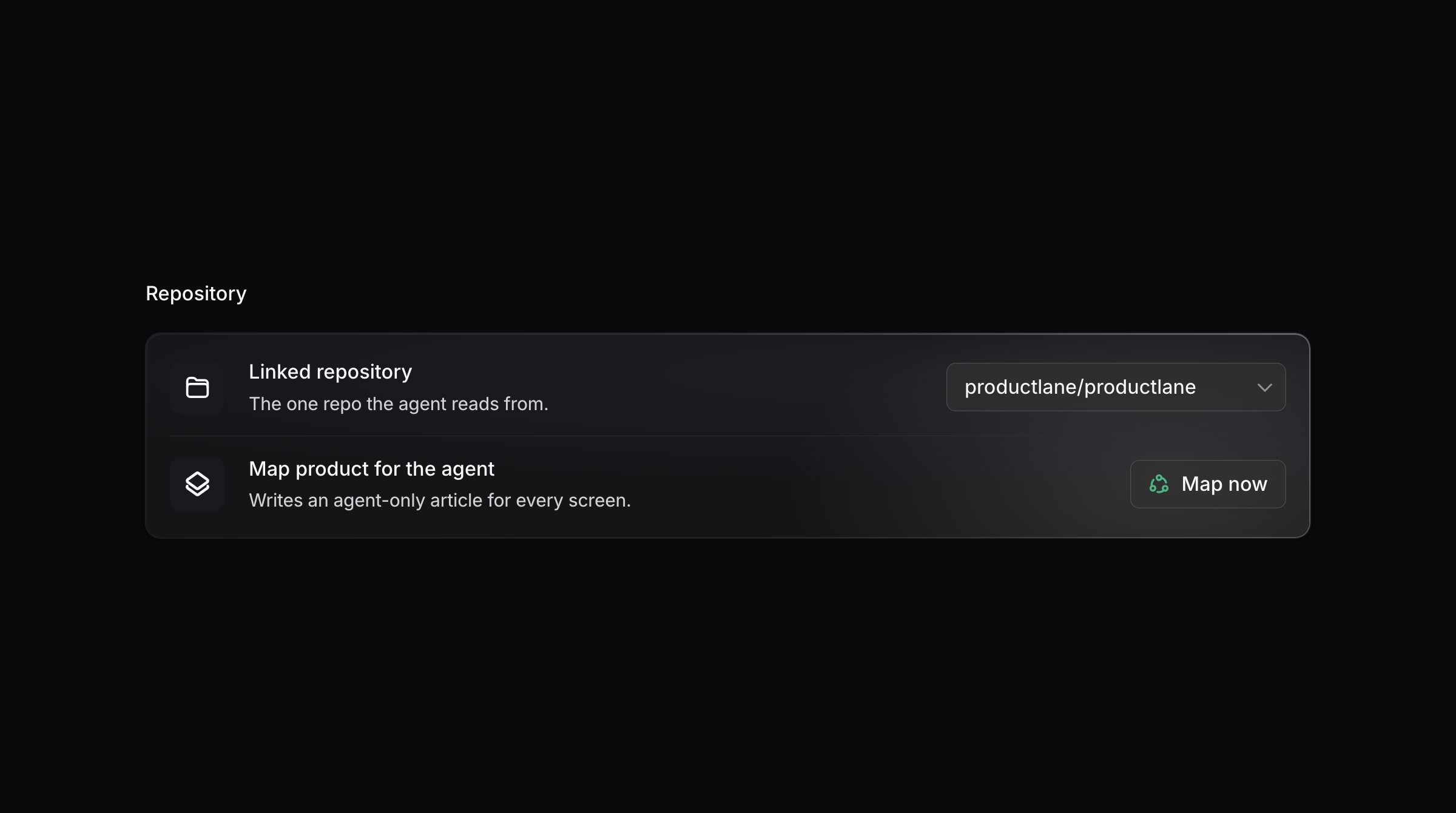
We're continuing to heavily focus on the Productlane Support Agent. It's exciting to see that more of you turn it on every week and start saving hours of time while improving the experience for your customers. This week, we're shipping another update that we saw strongly increase the agent's resolution rate: In the GitHub settings, you can now map your product's screens for the agent.
Map your product for the Agent
Help centers rarely cover every button and setting in your app. Once you connect GitHub, the Agent generates that context itself: one article per screen, listing each button, field, and setting with what it does. These articles are agent-only and never touch your published docs. It excludes screens behind an admin login, credentials, and other customers' data, and no source code goes into the context.
This runs separately from your published help center. The map is context for the agent, so it's never directly visible to customers. But it will also automatically update from merged GitHub code and completed Linear issues.
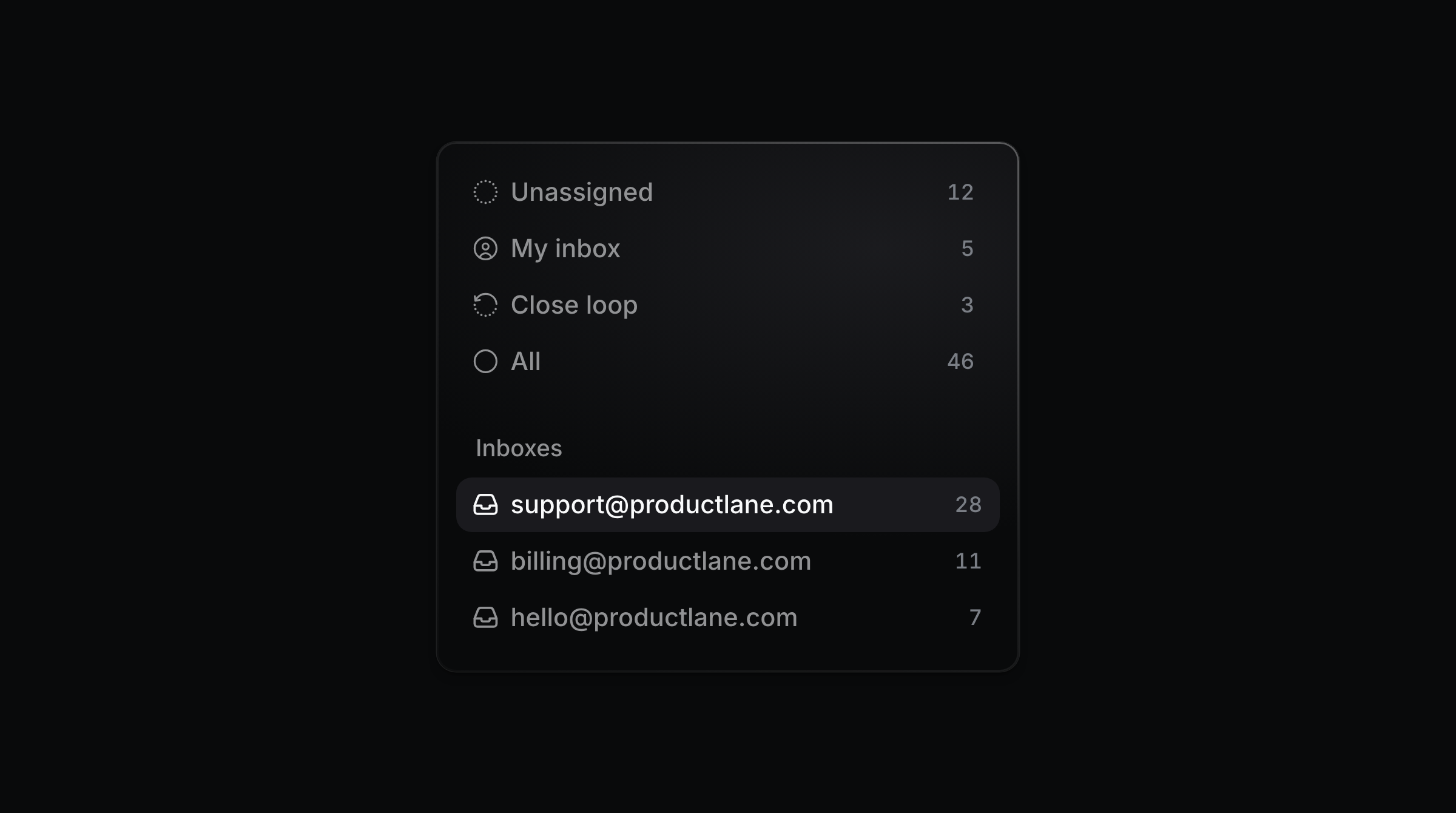
Deploy the Support Agent on multiple email inboxes
You can now deploy the agent on more than just one email address. Each address carries its own switch, so jobs@ never answers like support@. The agent writes only when it has a real answer, meaning something in your help center, your changelog, or a connected system settles the question. When all it could send is an acknowledgement, it stays silent and leaves the thread to your team. It also stays out of machine mail, so a bounce, an out-of-office, or a newsletter never gets a reply. You can set up multiple email addresses and deploy the agent individually here.
Get started
Just connect GitHub here, and the agent will be able to answer most of your customers' questions autonomously. We’re excited to help more of you deploy the agent on all your support channels and improve the experience for your users with instant resolutions.
Customer support agent upgrades
We think the future of customer support is autonomous. AI can now reliably answer questions that have been answered before and instantly verify bug reports, without sacrificing the user experience. This means that humans can finally move on to help customers who really need them.
To support you through this transition, we have shipped hundreds of improvements to the Productlane Support Agent over the last few months, and today we’re launching the largest one yet.
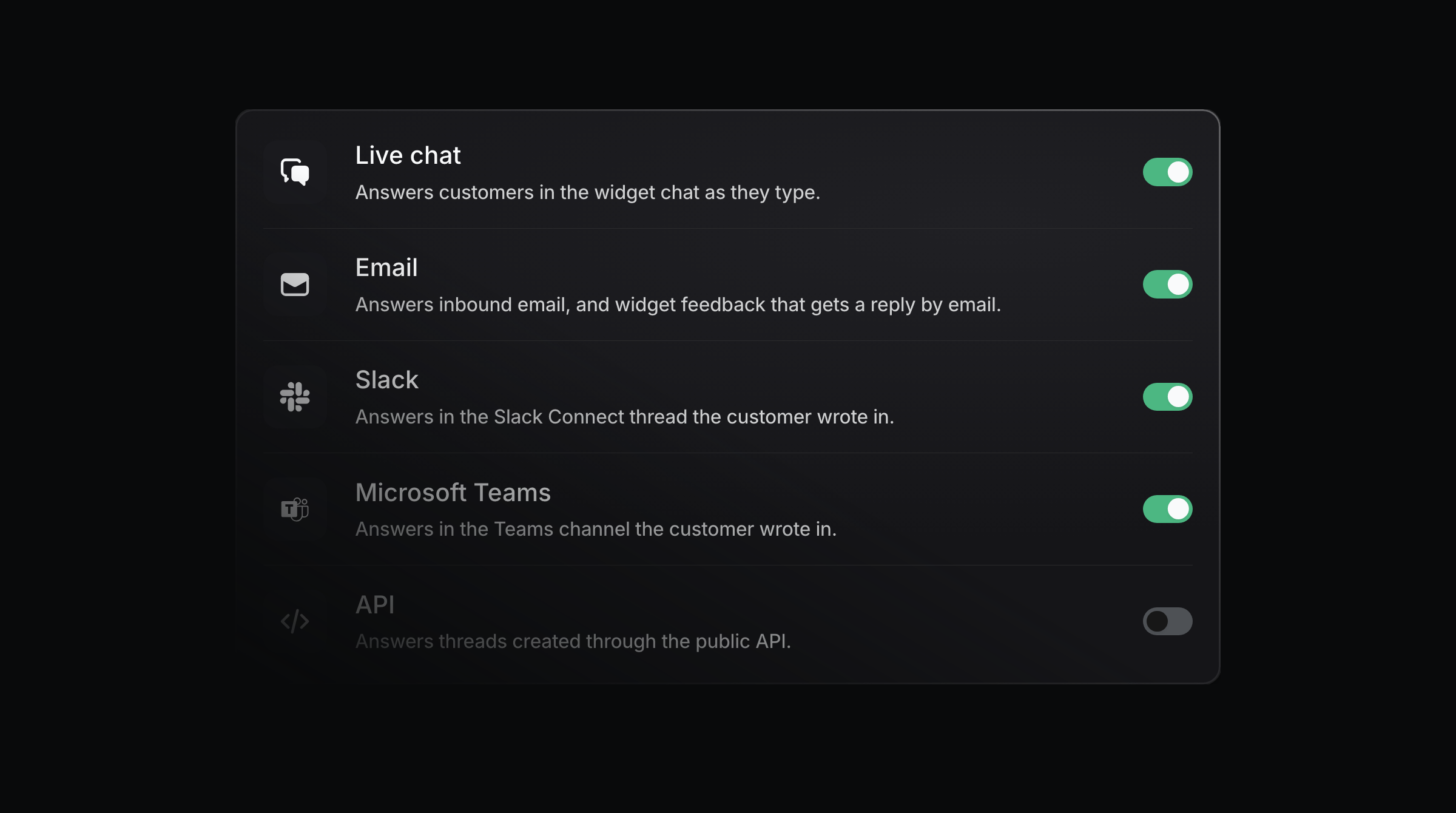
Deploy the agent to all your channels
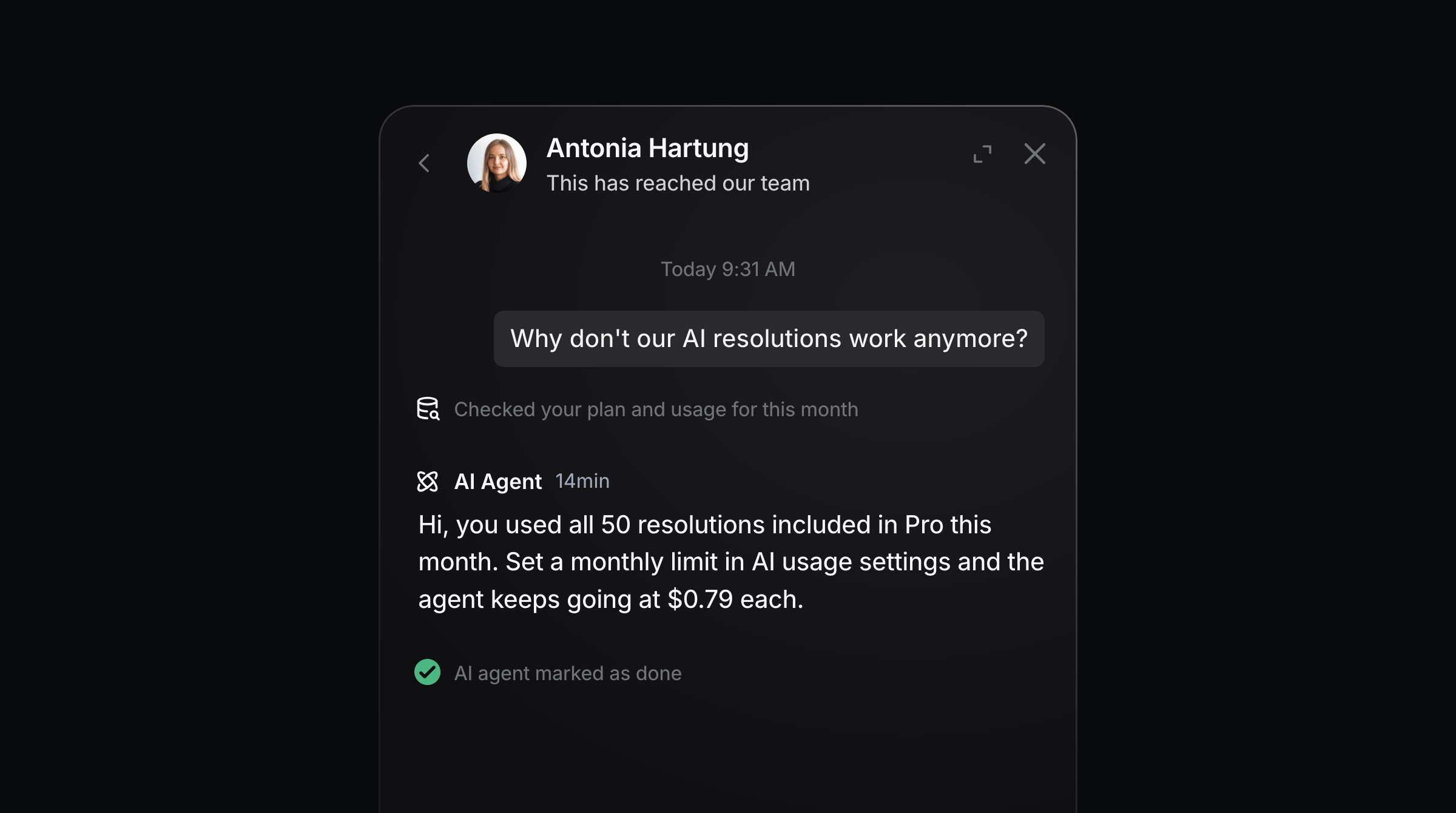
You can now preview responses and deploy the agent per channel, and it will start picking up conversations like a new team member. Across our customers, we currently have a 65.3% resolution rate, and it’s increasing every week. The best part is that it’s completely free up to 25 resolutions a month on Starter, 50 on Pro, and 100 on Scale. Everything after that is $0.79 per resolution. Pick your channels here and let the agent start saving you time.
Let the agent close conversations
When the agent is deployed on your support channels and confident it solved the problem for the customer, it closes the thread itself. Your daily triage is then only the customers that still need you. The notification in your Slack channel now contains the agents reply so you will still see what‘s happening.
Intelligent handoff
The agent works from two entry points. The first is your support channels from above, the second is the dedicated AI Chat on your Help Center and Widget. Threads from there are marked done by default, and now we added the possibility for the agent to escalate those to a human if they weren’t resolved.
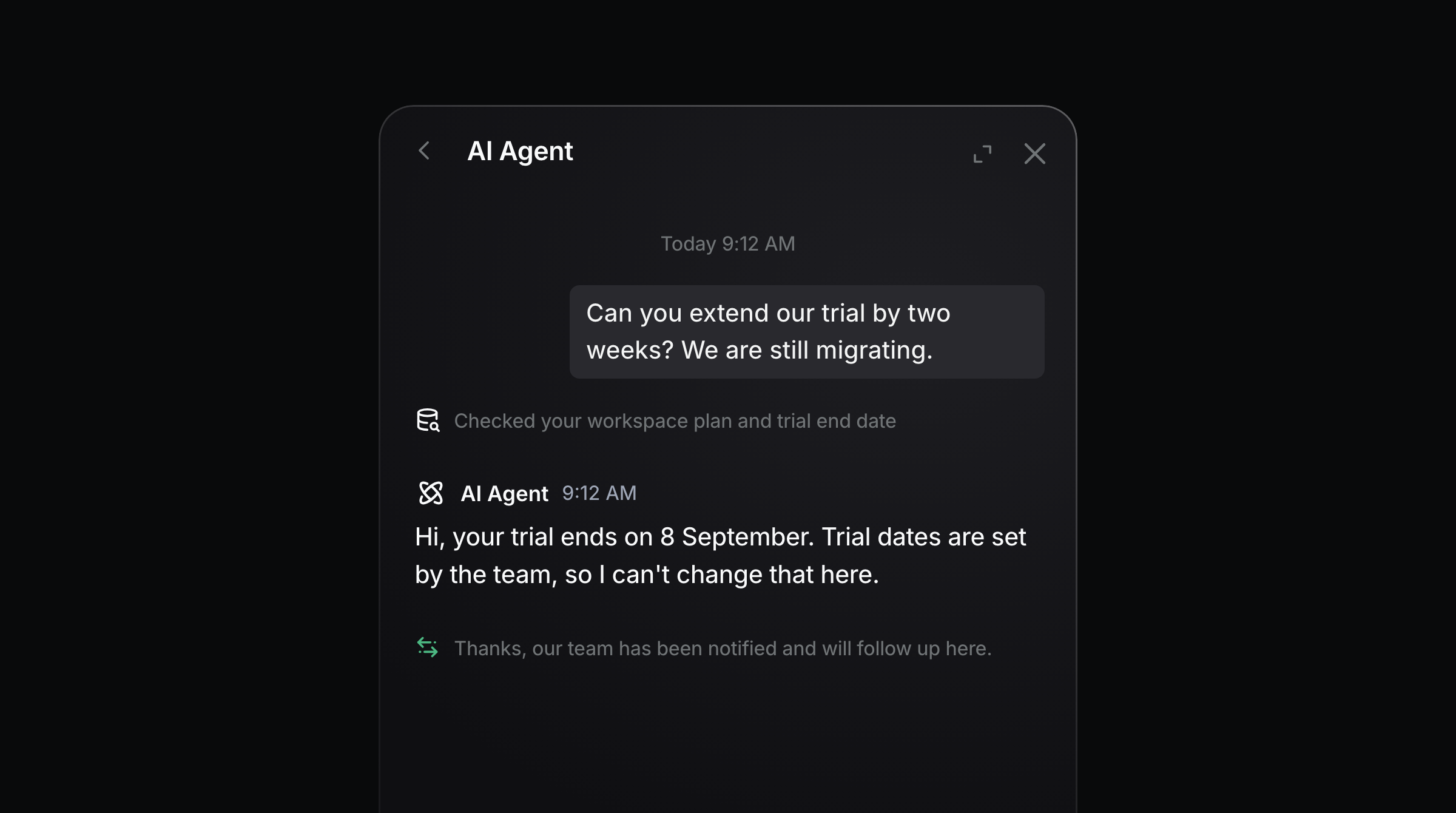
Image annotations
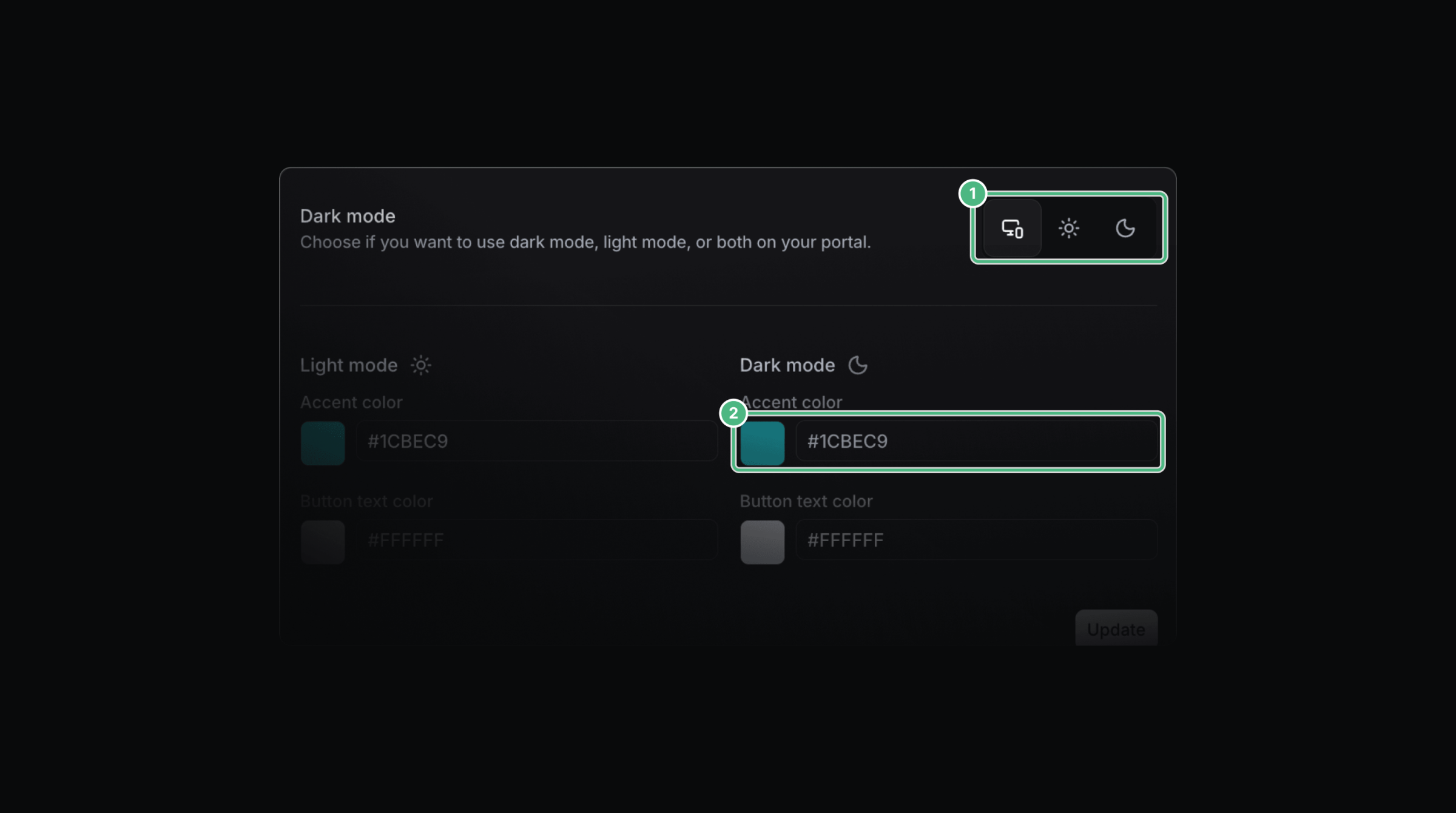
The agent can now mark up the screenshots in your help center, so an answer shows the customer exactly which button to click. Getting those screenshots there is a job for your coding agent. Point it at the Productlane MCP and build a skill that captures your help center screenshots with good demo data. Make it a routine and they stay current. Ideally make the articles Agent only so it doesn’t flood your customer facing docs.
User-facing timeline events
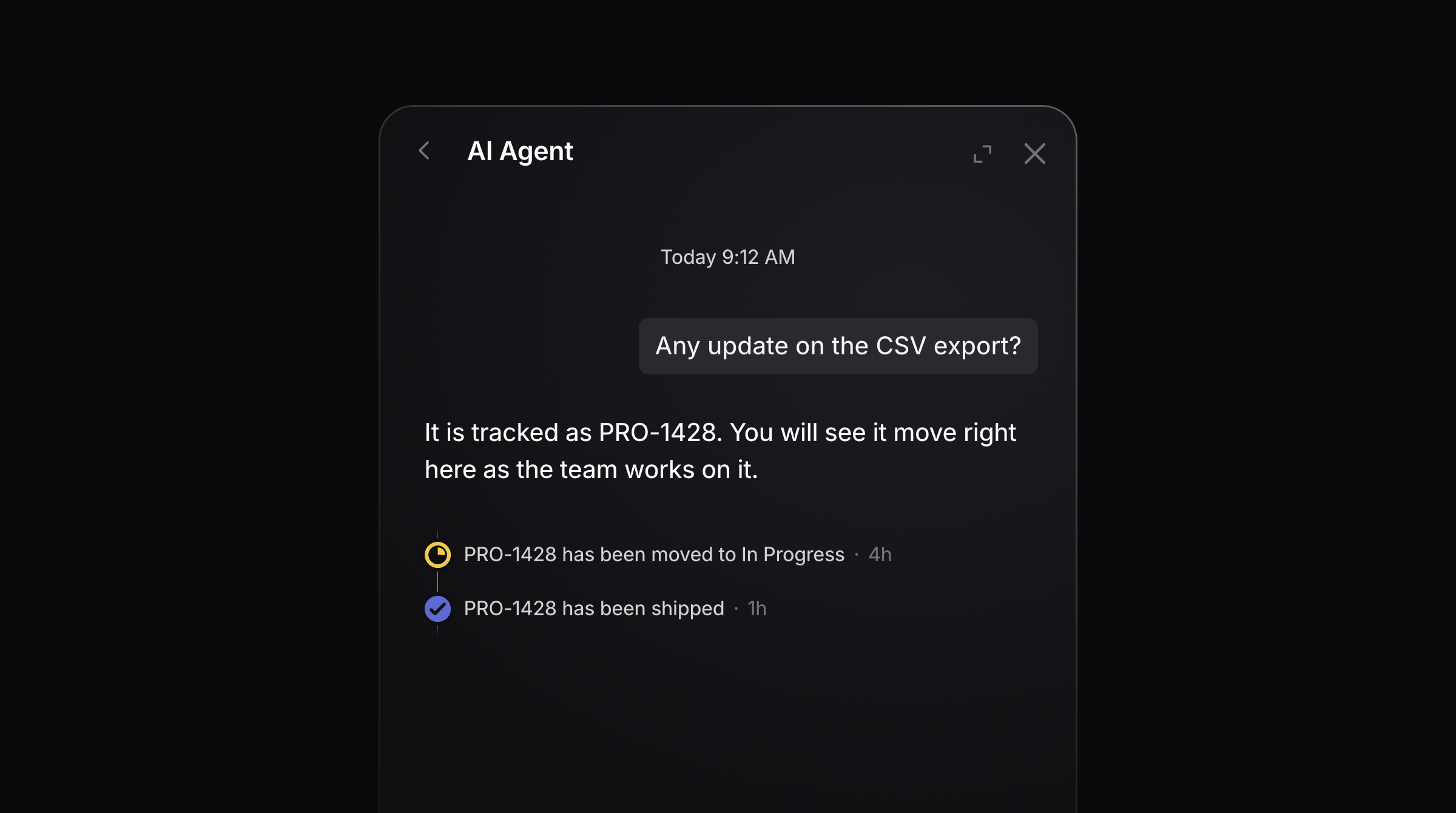
Linear issue status now shows up in the live chat and AI chat, so a customer can watch their requests move. They see todo, in progress, and done. The status never moves backwards, and cancelled work stays hidden. A merged PR shows up too, and none of it sends a notification. Set up a workflow in Linear where your coding agent picks up small bugs, and your customers can watch it live.
How to get started
We’re really excited about helping to make your support autonomous and saving you hours of work, and we’ll continue improving the resolution rate of the agent every week. To get started, you will just need to:
Import your help center
Move your help center to Productlane to make it self-updating from GitHub, Linear, and your conversations.Deploy the agent
Select the channels you want to deploy the agent to here.
After that, you can improve the agent continually by adding custom connectors or a complete map of your product with screenshots as an internal doc for your agent.
Microsoft teams
Productlane now works with Microsoft Teams. Teams conversations can flow into Productlane alongside your other support channels, making it possible to manage customer communication in one place. Attachment support is included as well, so files can be sent and received as part of those conversations. This is available on the Scale plan.
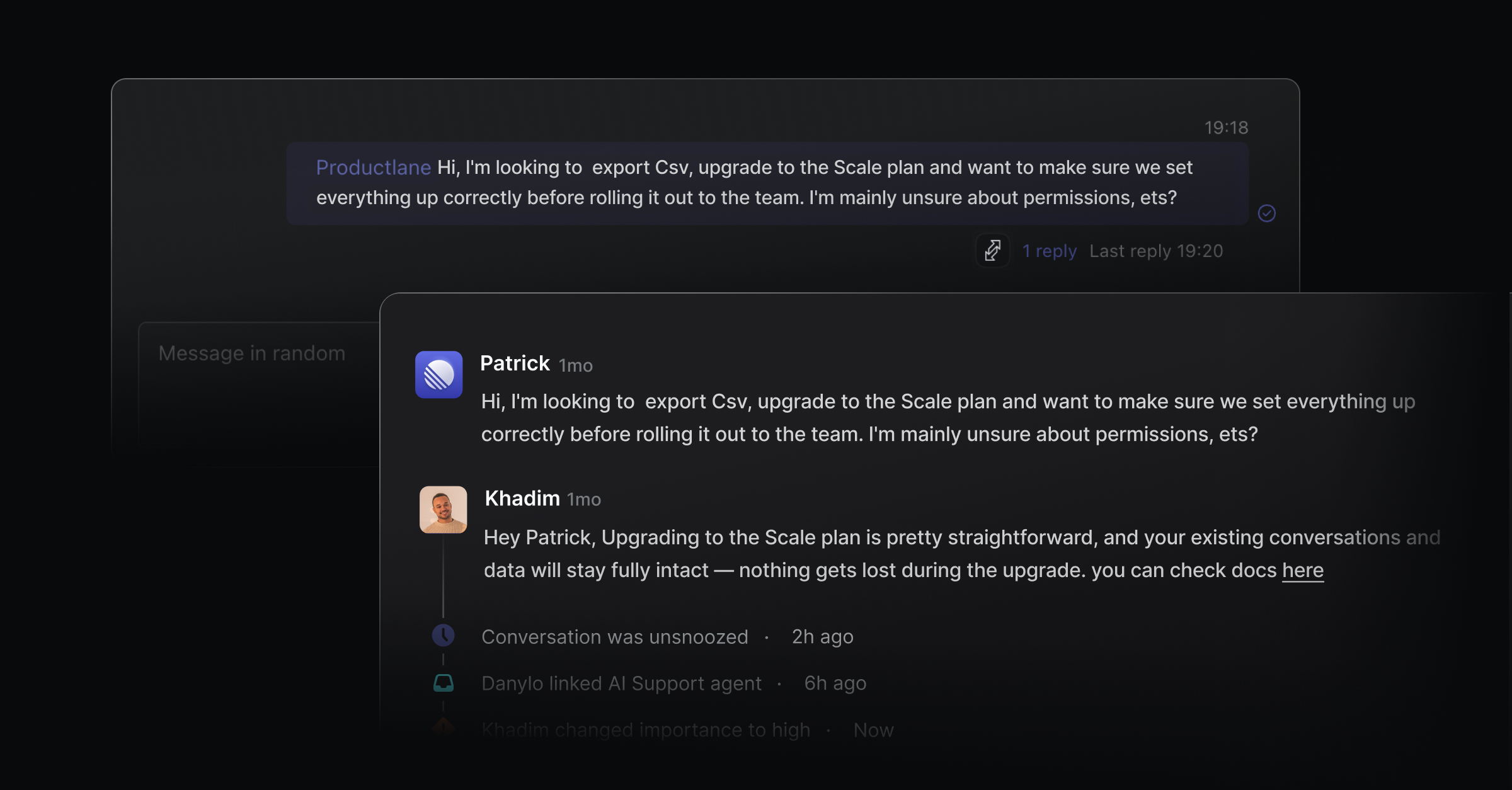
Overview
The Microsoft Teams integration brings Teams conversations into Productlane. Once the Productlane bot is added to a team, channel messages and chats are automatically converted into Productlane threads. You can reply from Productlane, and your reply appears back in Teams as a threaded message, with your name and avatar. Files and images sync both ways.
Like the Slack integration, you can link Teams threads to Linear issues, snooze and close them from your Productlane inbox, and collaborate internally with side notes - without ever leaving Productlane.
Support Agent Connectors
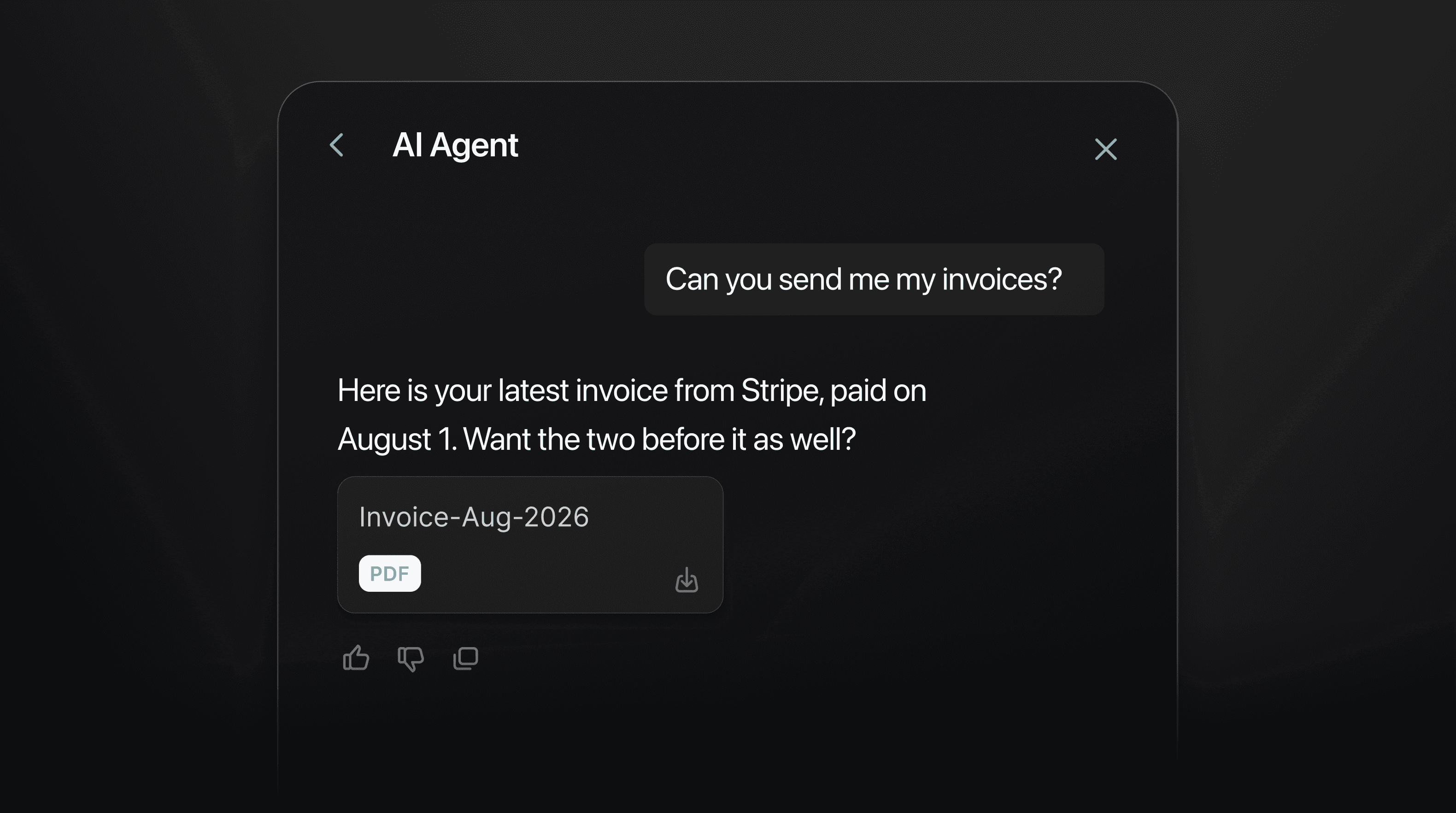
Your support agent can now access data from any source. Customers can ask:
Your product database
Stripe, Shopify, or any billing system
Internal analytics and usage data
CRM records, logs, anything
Getting closer to helping you make more of your customer support autonomous.
Let the Productlane Agent access any data
When a customer asks about their recent invoice, the agent looks up their subscription and answers right there, so your team gets the number without switching tabs. It can run a refund or update a CRM record the same way, with a confirmation step before anything actually changes.
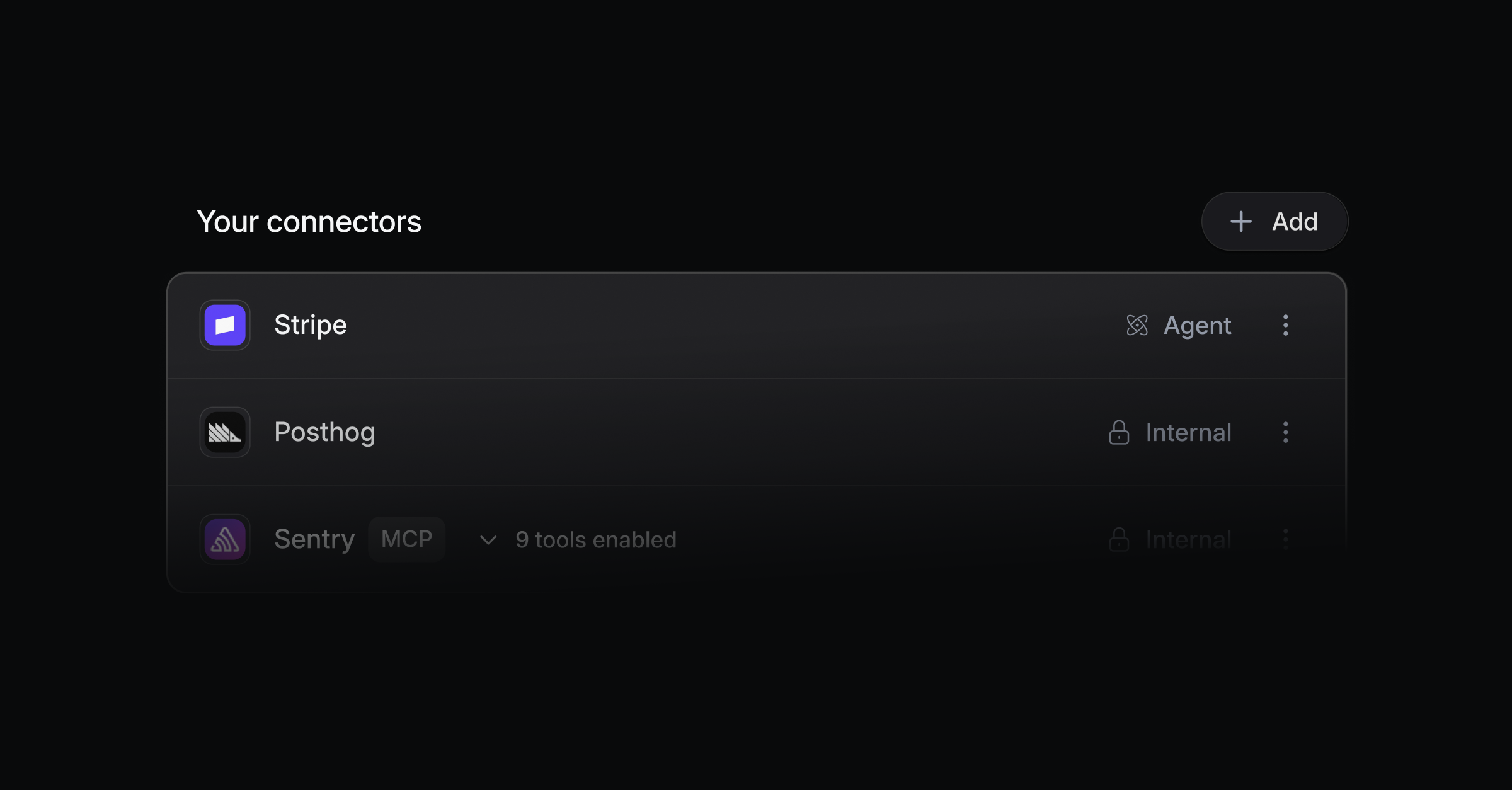
Access depends on which agent is asking. Copilot and thread drafts keep full access, since a person reviews the output before anything goes out. Customer-facing agents like email auto-reply and live chat reach the connectors and actions you've turned on for them, and you enable each connector for agent access individually. Actions that make real changes can be marked to always wait for a human to confirm, no matter which agent triggered them.
External links and internal docs for the agent
When a question needs more context, the agent can now also pull from your help center articles or a custom URL you've pointed it to, so it answers from your docs even for topics no connector covers.
Try it: head to Settings → Connectors to add actions to a connector, or turn on agent access for one you already have.
Reply within Linear
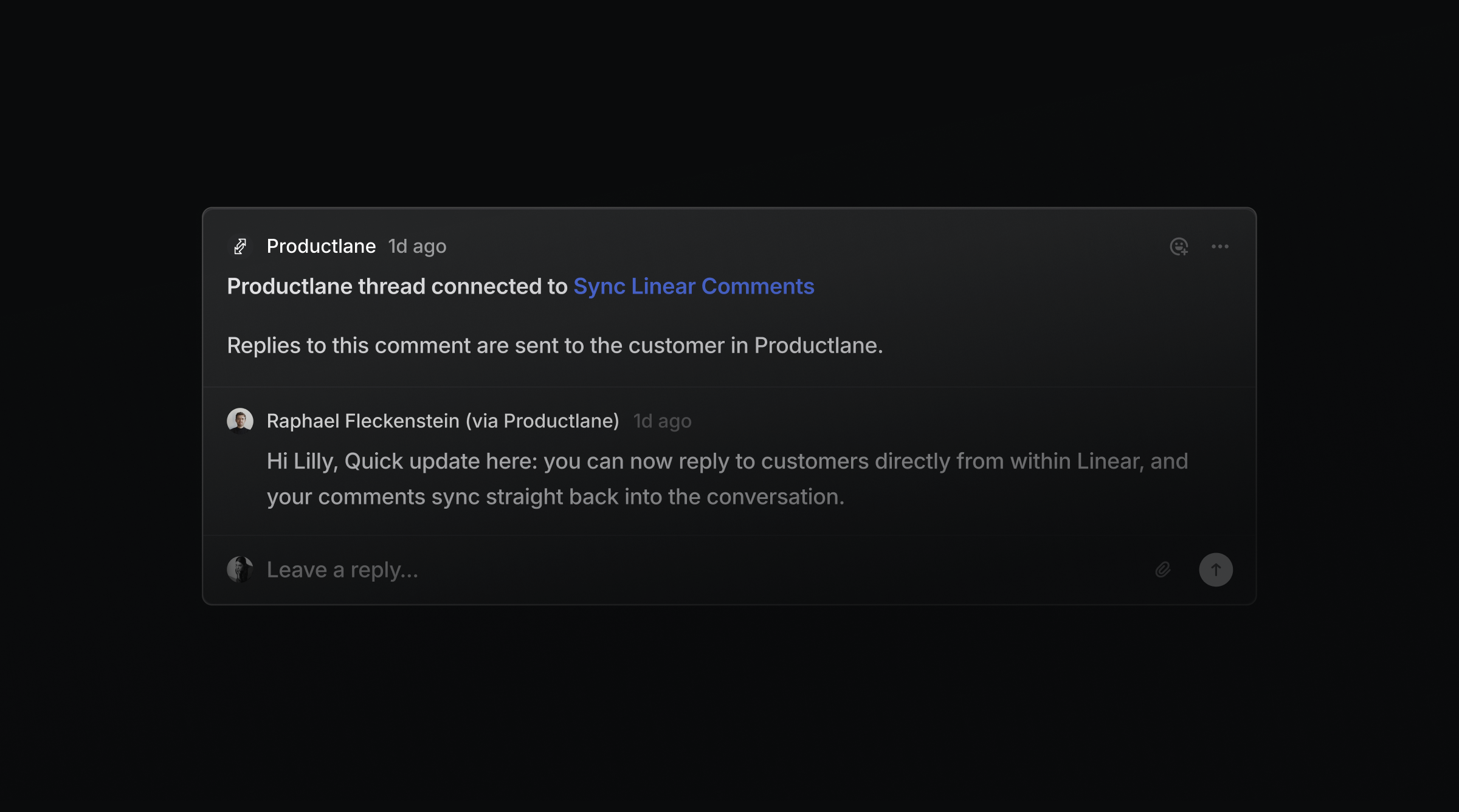
You can now handle multichannel customer support from inside Linear. Productlane creates a synced comment on an issue for every conversation from Live chat, Slack Connect, email, or Teams. You can reply directly from Linear, and responses sync back to the customer in their original channels.
Your support team can work in Productlane with AI drafts and resolutions for high volume, while engineers can stay in Linear and still reply to customers. Also, with coding agents, it's really powerful to have the customer conversation directly on the ticket where a PR from your agent is already waiting.
Turn it on in Settings → Linear under Reply to customers in Linear. The feature is available on all plans. Everyone who wants to reply from Linear needs a seat in Productlane.
AI Assistant for Help Center and Changelog
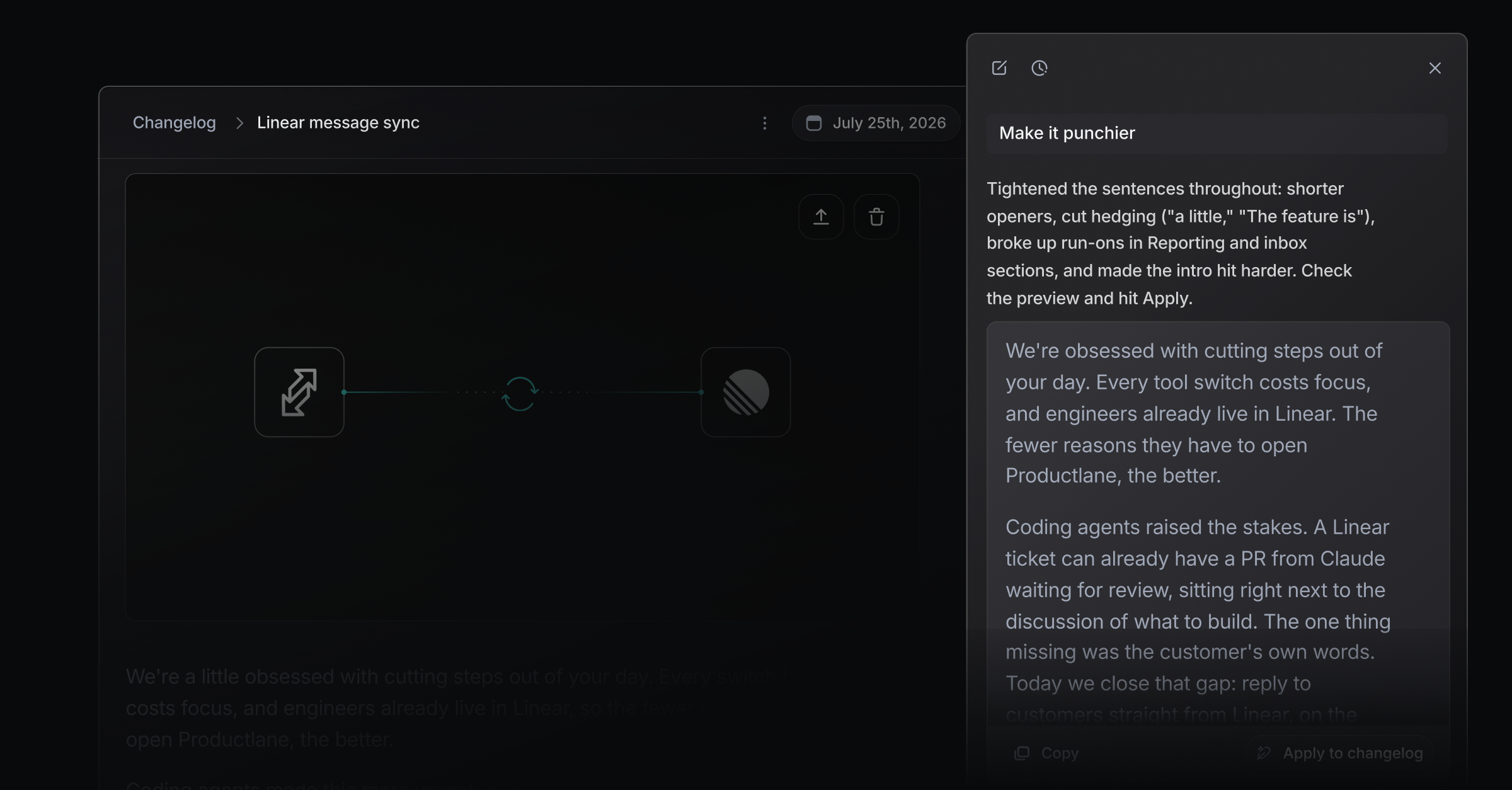
We have more great news: The Assistant is now included in all plans and works inside the Help Center and Changelog editor. Open any article and toggle it from the header icon or Cmd + J to draft content. It now also has access to your connected GitHub repository, so it has context for your entire codebase, helping you write Help Center articles and Changelogs faster.
Every plan includes a monthly pool of AI credits covering Copilot, docs generation, changelog generation, and translations. Usage past that pool bills automatically at token cost plus a small margin, capped at the overage limit you set. Track spend and adjust the limit in Settings → Features → AI → Usage.
Inbox assistant and UI improvements
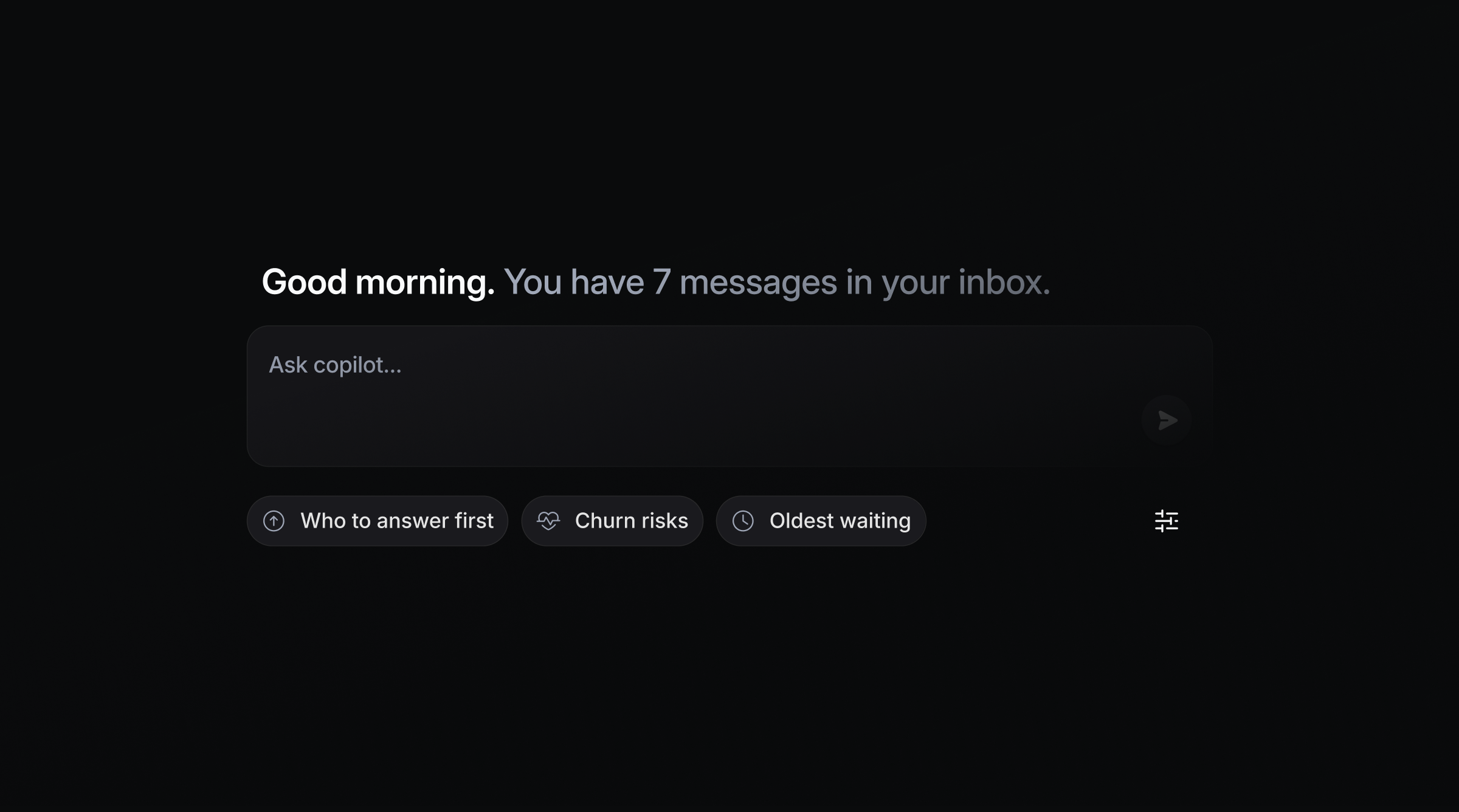
The assistant now works across your whole inbox, not just a single thread. You can ask it things like who to answer first or who's at risk of churning. The messages have a new UI for better readability, and the snoozed and done tabs moved out of the sidebar into a shared Open / Snoozed / Done dropdown in the inbox header.
Advanced Reporting early access
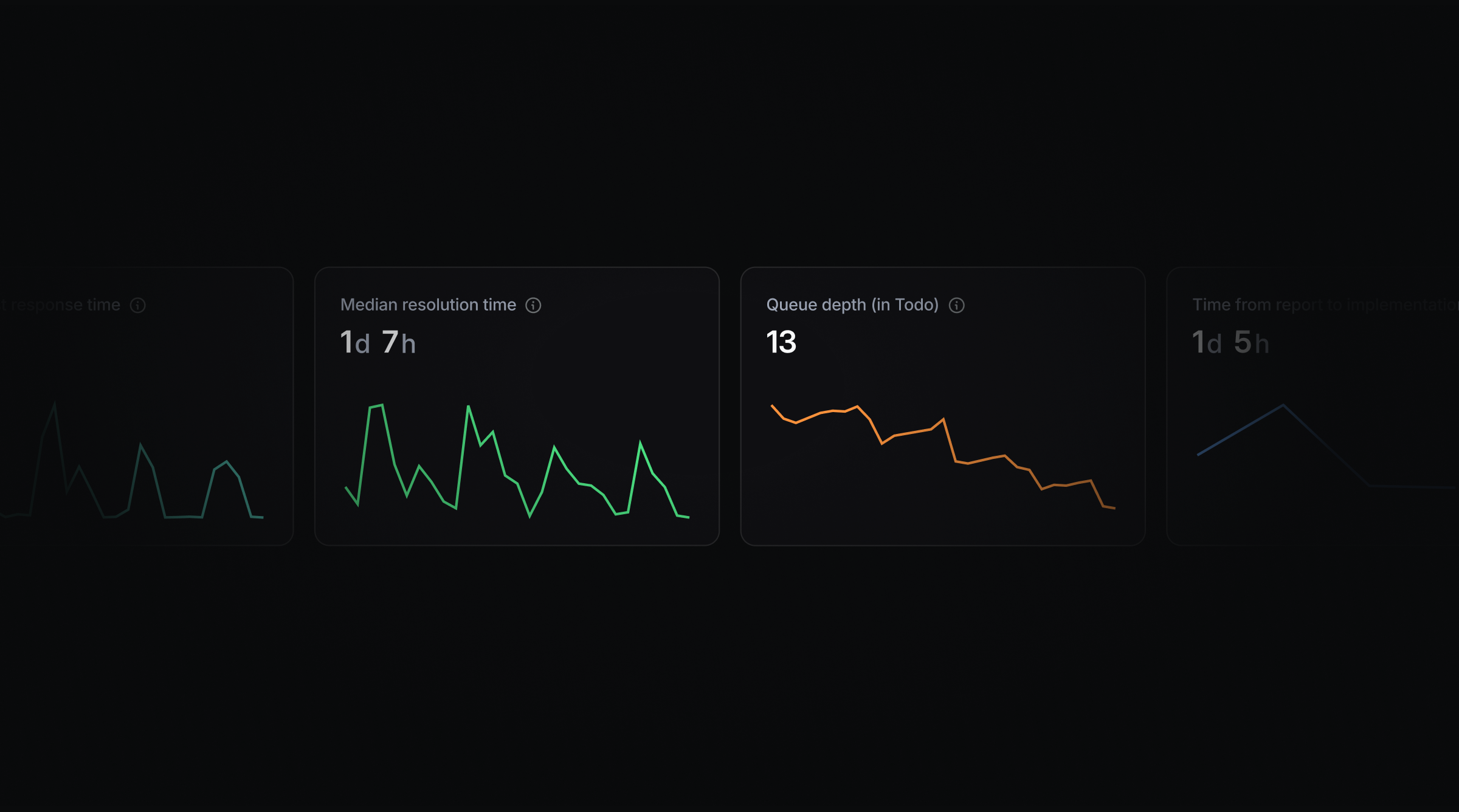
Reporting now has dedicated tabs for Overview, Conversations, Team, Responsiveness, and Feedback, covering first response and resolution times, queue depth, AI resolution rate, and reply activity by teammate. Try it alongside other early access features that we're currently working on: Attio, PostgreSQL integration, and Multiple Portals.